
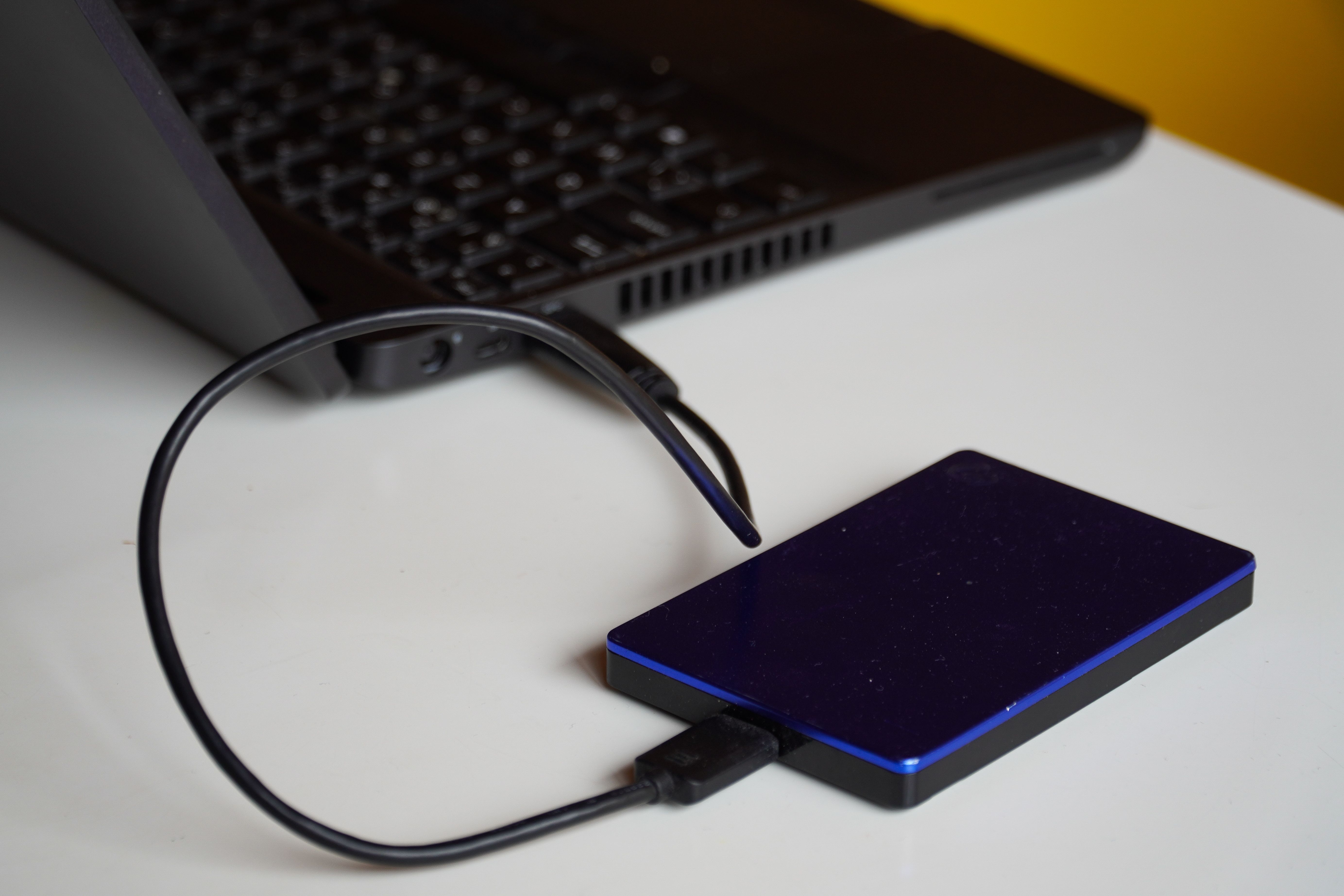
You connect your external hard drive to your laptop, wait for Windows to recognize it, and nothing happens. The drive doesn't appear in File Explorer, your files are missing, and you may start wondering whether the hard drive has failed.
Fortunately, an external hard drive not showing up in Windows 11 doesn't always mean the drive is damaged. A faulty cable, insufficient power, a missing drive letter or a Windows detection problem can all cause this issue.
In this guide, we'll show you how to troubleshoot an external hard drive that is not recognized by Windows 11, starting with the safest checks.
Important: If the drive contains important photos, documents or work files, do not format it, initialize it or create a new partition. These actions can make data recovery harder.
1. Check the USB Cable, Port and Power
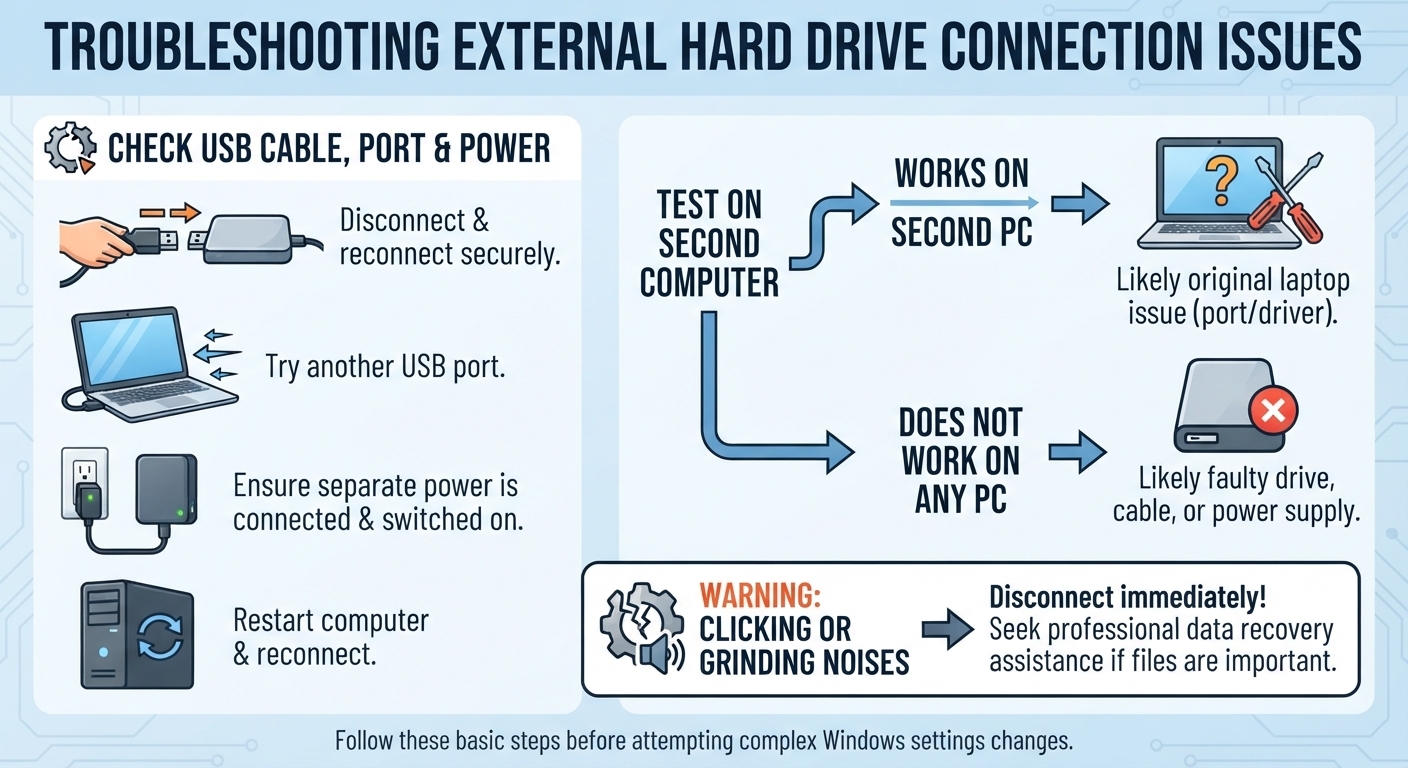
Start with the simplest possible causes before changing Windows settings.
Disconnect the external hard drive and reconnect it securely.
Try another USB port on your computer.
If the drive uses a removable USB cable, try a compatible replacement cable.
Connect the drive directly to your laptop instead of using a USB hub or docking station.
If it has a separate power adapter, make sure it is connected and switched on.
Restart Windows and reconnect the drive.
If possible, test the external hard drive on another computer.
If it works on the second computer, the original laptop may have a USB port, driver or configuration problem. If neither computer recognizes it, the drive, cable or power supply could be faulty.
If the drive makes repeated clicking or grinding noises, disconnect it and seek professional data recovery assistance if the files matter.
2. Check Whether the Drive Appears in Disk Management
This is one of the most useful checks when an external hard drive is detected but not showing in File Explorer.
Right-click the Windows Start button.
Select Disk Management.
Wait for the disk list to load.
Look for the external drive by its capacity and disk number.
You can also press Windows + R, type diskmgmt.msc, and press Enter.
What you see determines your next step.
The drive has a healthy partition but no drive letter: Continue to Step 3.
The drive is marked Offline: Don't change its status if you don't understand why it is offline or if the data is important. Investigate the reason first.
The drive shows RAW or Unallocated: There may be a file-system or partition problem. Do not format or create a new volume if you need the files.
The drive is not listed: Continue to Step 4.
A brand-new, empty drive may legitimately need initialization and formatting before first use. However, never assume that a previously working drive is new simply because Windows displays an initialization prompt.
3. Assign a Drive Letter if It Is Missing
Sometimes Windows detects an external hard drive but doesn't assign it a letter. As a result, the drive may not appear under This PC in File Explorer.
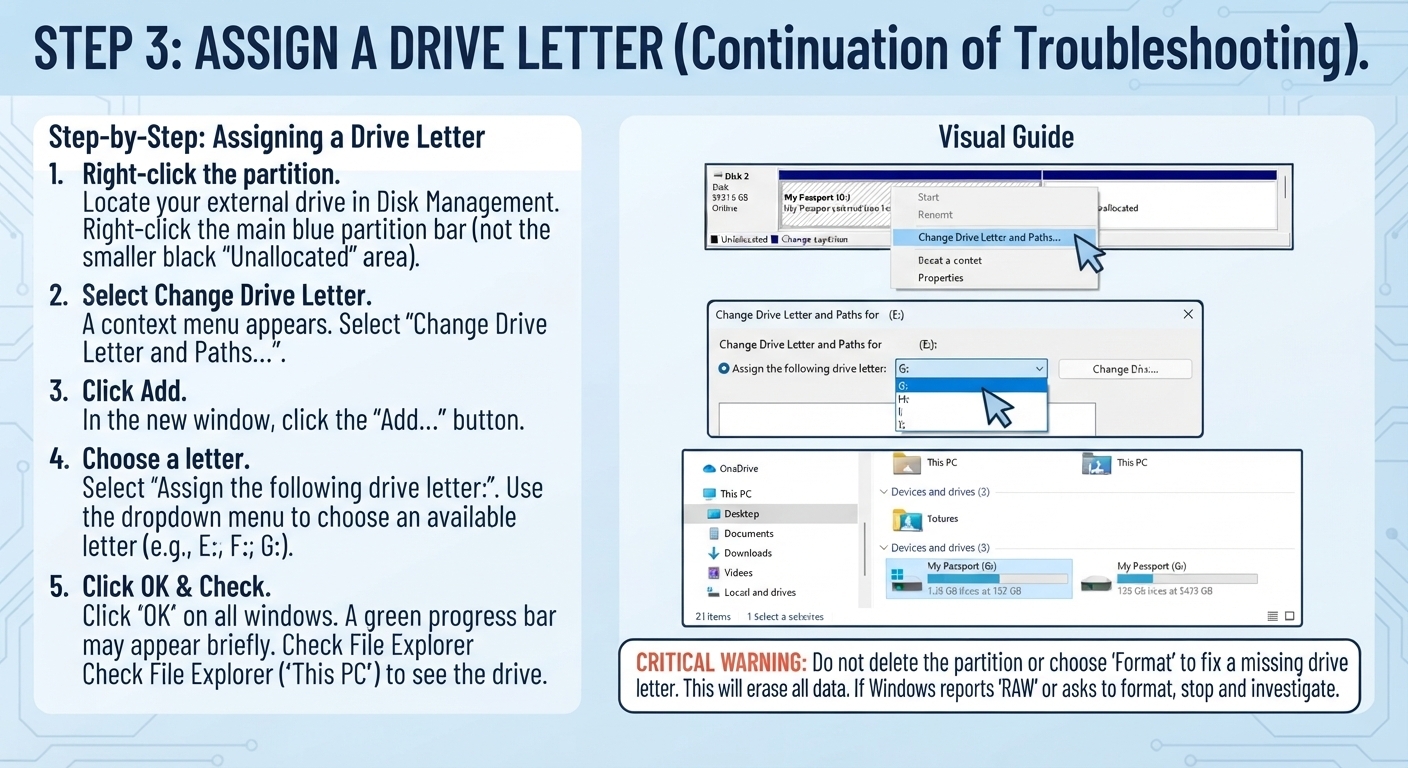
If Disk Management shows a healthy, accessible partition without a drive letter:
Right-click that partition.
Select Change Drive Letter and Paths.
Click Add.
Choose an available drive letter.
Click OK and check File Explorer again.
Do not delete partitions or format the drive to solve a missing-letter problem. If Windows reports that the partition is RAW, asks you to format it, or displays an unexpected capacity, stop and investigate before making changes.
4. Check Device Manager for Detection Errors
If the external hard drive is missing from Disk Management, check whether Windows detects a USB device problem.
Right-click Start and open Device Manager.
Expand Disk drives.
Expand Universal Serial Bus controllers.
Look for an unknown device or a yellow warning symbol.
Disconnect and reconnect the external drive to see whether the device list changes.
If you identify a device clearly associated with the external drive, you can check its Properties for an error code.
Avoid uninstalling random USB controllers or deleting unrelated devices. If an error appears, search for that specific code and follow the relevant manufacturer's guidance.
Read also: is a 1tb external ssd enough?
5. Try Another Computer Before Assuming the Drive Has Failed
Testing the external hard drive on another computer helps separate a drive problem from a Windows problem.
If the drive works elsewhere, focus on the original computer's USB ports, Device Manager and Windows updates.
If it remains undetected on multiple computers, especially after trying another cable and checking the power supply, the enclosure or drive itself may have failed.
If the drive contains irreplaceable files, avoid repeatedly reconnecting a failing drive or running repair utilities that write to it. A data recovery specialist may be the safer option.
Recommended product
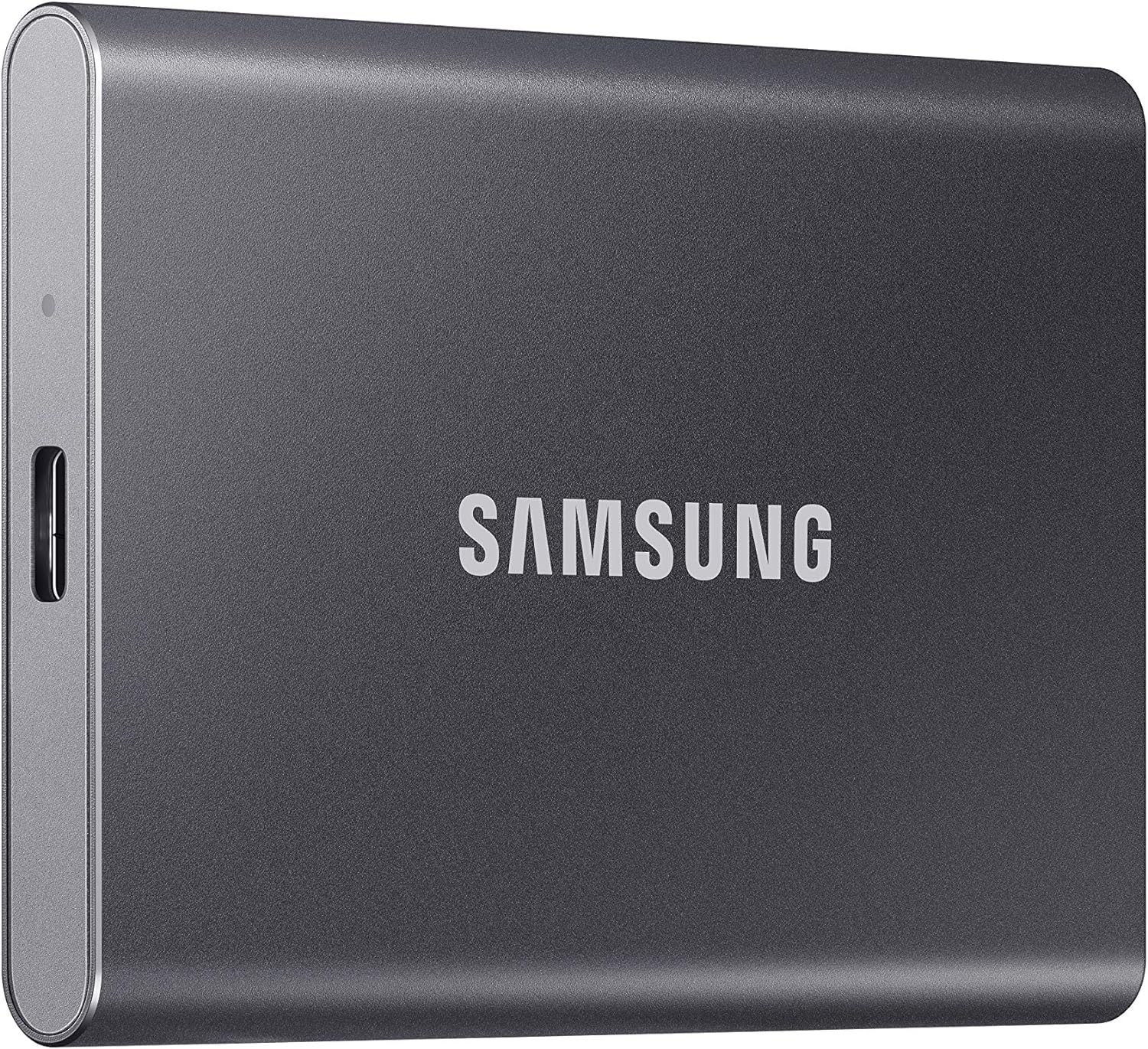
Samsung T7 Portable SSD 1TB Titan Gray, USB 3.2 Gen 2, Up to 1,050MB/s
Consider This reliable Samsung replacement if your hard drive has failed
Affiliate link
Check Price on Amazon6. Protect Your Files After Fixing the Problem
Once Windows recognizes the external drive and you can access your files, copy important data to another storage location. Do not rely on a single external drive as your only backup.
If you regularly store photos, videos or work files, a second drive can provide another copy of your data.
When Should You Stop Troubleshooting?
Stop and seek professional assistance if:
The drive clicks, grinds or repeatedly spins up and shuts down.
It contains important files but appears as RAW, Unallocated or Not Initialized.
Windows repeatedly asks you to format a drive that previously contained data.
The drive is not recognized by multiple computers after basic connection checks.
Do not run a format or initialize operation just to make the drive visible. Getting the drive to appear in File Explorer is not worth losing the files you are trying to recover.
Frequently Asked Questions
Why is my external hard drive not showing up in Windows 11 File Explorer?
Common causes include a missing drive letter, a faulty USB cable, insufficient power, a USB detection error or a damaged file system. Check Disk Management first to determine whether Windows detects the drive.
Why does my external hard drive appear in Disk Management but not File Explorer?
It may have a healthy partition without an assigned drive letter. If the partition is healthy and its data is accessible, assigning an available letter can make it appear in File Explorer.
Should I initialize an external hard drive that Windows does not recognize?
Only if it is a genuinely new or intentionally erased drive and you are certain it contains no data you need. Initializing or formatting a drive that previously held files can complicate recovery.
Affiliate disclosure: TecniView may earn a commission from qualifying purchases made through affiliate links, at no additional cost to the reader.
Editorial note: Troubleshooting steps and Windows interface labels may vary slightly by device and Windows version. Always protect important files before attempting operations that modify a disk.