
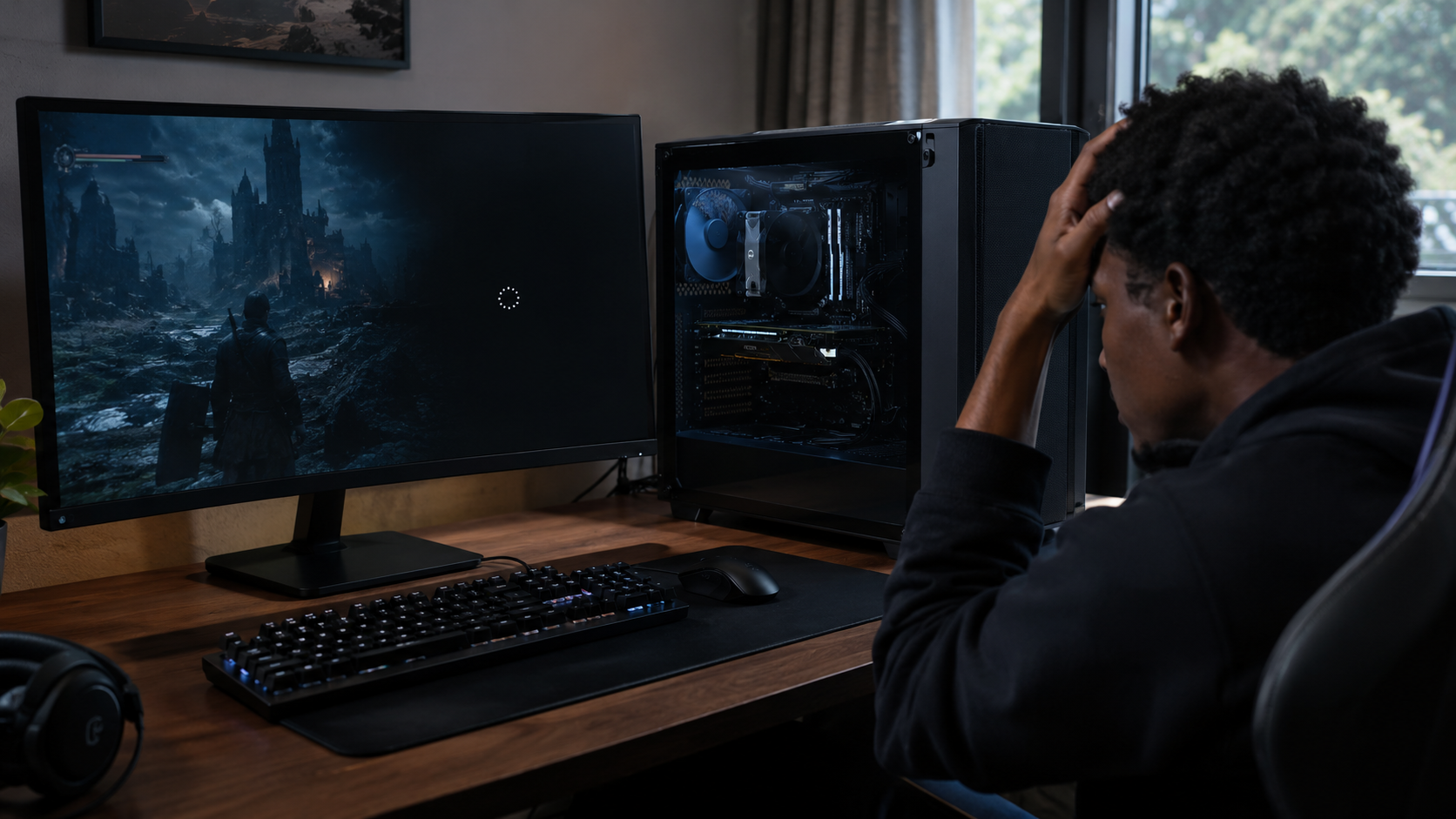
Your gaming PC runs perfectly on the desktop, but the moment you launch a demanding game, the screen goes black, the fans stop spinning, or the computer suddenly restarts.
If your gaming PC shuts off during games, the power supply unit (PSU) and overheating are two possibilities worth investigating. However, a faulty graphics card, unstable overclock, memory problem or other hardware fault can produce similar symptoms.
Before buying a new PSU or expensive CPU cooler, work through these checks to identify what might actually be wrong.
Why Does My Gaming PC Shut Off During Games?
A gaming PC consumes more power under heavy CPU and GPU workloads than it does when sitting idle. These workloads can also increase component temperatures.
The most common areas to investigate include:
Power supply problems: An undersized, failing or unsuitable PSU may struggle with the system's power demands.
CPU overheating: Poor cooler contact, a failing pump or inadequate airflow can cause excessive CPU temperatures.
GPU overheating: A hot graphics card may throttle performance or become unstable.
Unstable overclocking: Aggressive CPU, GPU or memory settings can cause crashes and restarts.
Other hardware faults: Memory instability, motherboard problems and graphics-card faults can also cause unexpected shutdowns.
The important point is that a PC shutting off under load does not automatically mean its power supply is faulty.
Step 1: Identify Exactly What Happens When the PC Shuts Off
Before opening the computer case, observe the symptoms.
Does the entire PC lose power? If the fans and lights stop immediately, investigate power delivery, overheating protection and other hardware faults.
Does the computer restart automatically? Check Windows logs for evidence of a system crash, power interruption or another unexpected restart.
Does the screen go black while the fans remain running? Investigate the graphics card, display connection, GPU drivers and power delivery before assuming the entire computer has shut down.
Does the game close but Windows continues running? A game crash, unstable driver or software problem may be more likely than a complete power failure.
These differences matter because replacing the wrong component can cost hundreds of dollars without fixing the problem.
Step 2: Check CPU and GPU Temperatures
Overheating is one of the first things to investigate when a gaming PC shuts down under load.
Install a reputable hardware-monitoring utility and observe CPU and GPU temperatures while the system is idle and during normal gaming. Record the temperatures immediately before a crash if possible.
Compare your readings with the specifications and thermal limits for your exact CPU and graphics card.
Warning signs include temperatures approaching the component's maximum operating limit, unusually high idle temperatures, rapidly increasing temperatures under load, or performance dropping as temperatures rise.
If the CPU overheats, possible causes include:
A CPU cooler that is incorrectly mounted.
Dust restricting airflow through the heatsink or radiator.
A CPU fan that is not spinning properly.
A liquid cooler pump that is malfunctioning.
Poor case ventilation or unsuitable fan placement.
If the GPU overheats, inspect its fans, heatsink and airflow. Avoid opening the graphics card itself unless you have the necessary experience.
Important: High temperatures can cause thermal throttling without immediately shutting down the PC. A shutdown may indicate a more serious issue, but temperature readings and the manufacturer's limits should guide your
Step 3: Check Windows Event ID 41 diagnosis.
Windows provides a useful troubleshooting clue called Kernel-Power Event ID 41.
Microsoft explains that this event is logged when Windows starts after the previous session ended unexpectedly. It does not, by itself, establish the exact cause.
To inspect it:
Press
Win + Xand open Event Viewer.Expand Windows Logs.
Select System.
Choose Filter Current Log.
Enter
41in the event ID field.Find an event matching the time your gaming PC shut down.
Read the event details and check for accompanying errors around the same time. A bug-check code may indicate that Windows crashed, while an event with zero bug-check information can be consistent with an abrupt power interruption.
Microsoft's official Event ID 41 troubleshooting guide explains how to interpret the event and investigate unexpected restarts.
Do not treat Event ID 41 as proof of a faulty PSU. It is a diagnostic clue, not a component-failure verdict.
Step 4: Determine Whether the PSU Is the Problem
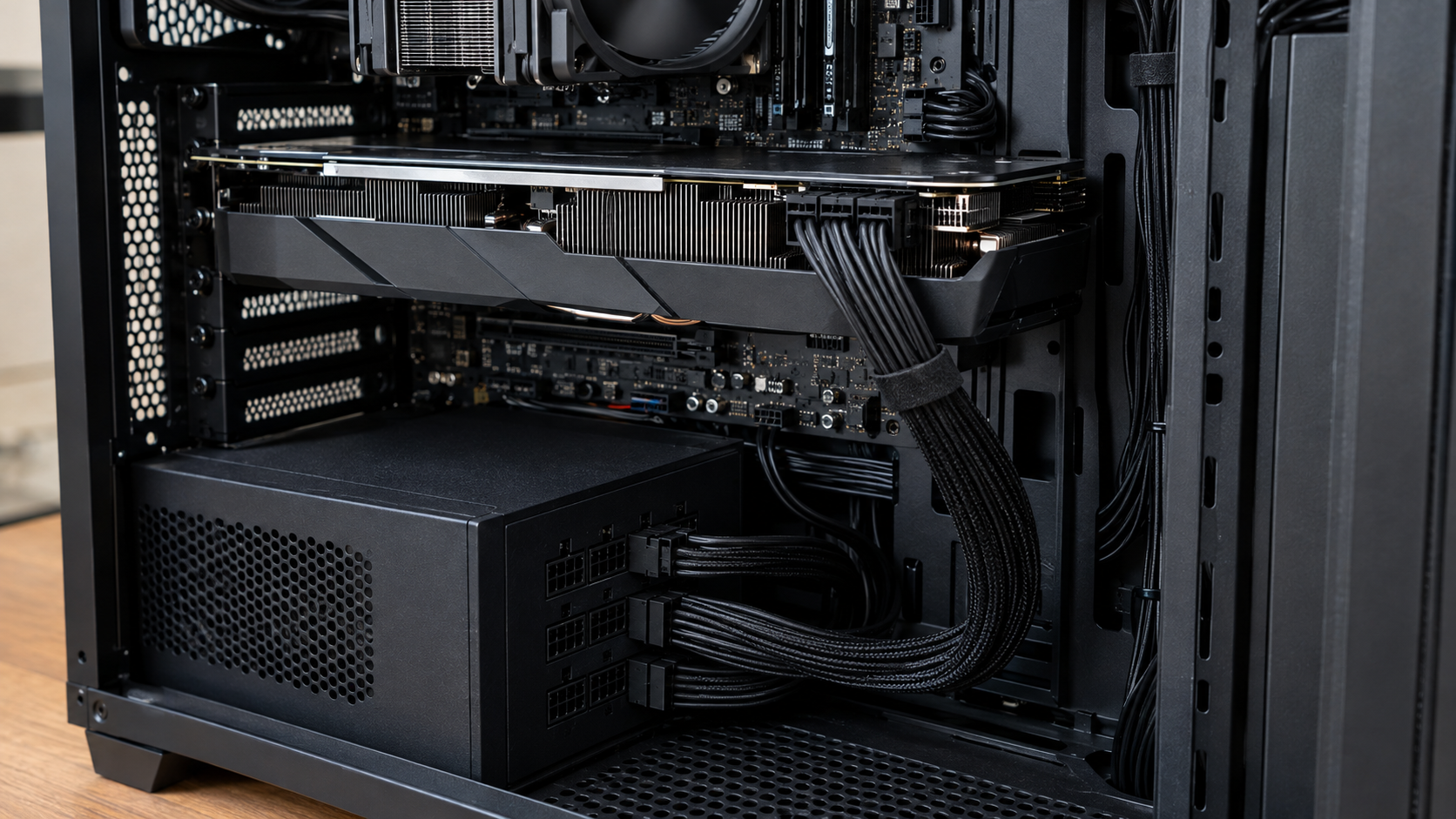
A gaming PC that powers off when a demanding game starts may have a power-delivery problem, particularly after a graphics-card upgrade.
Check the following:
Did the problem begin after installing a more powerful GPU or CPU?
Does the shutdown happen mainly during demanding games?
Is the PSU's rated capacity suitable for the complete system?
Are the required GPU and CPU power connectors correctly connected?
Is the power supply showing signs of damage or unusual electrical noise?
The GPU is often a major factor in determining PSU requirements, but the CPU, other components, power spikes and connector requirements matter too.
An 850W or 1000W PSU is not automatically necessary for every gaming PC. Check the graphics-card manufacturer's recommendation and calculate requirements for your specific configuration.
If you suspect the PSU, have a qualified technician test it or use a known-good, compatible replacement to confirm the diagnosis.
Never open a power supply unit. Internal components can retain dangerous electrical charges even after it has been unplugged. Never mix modular PSU cables from different models unless the manufacturer explicitly confirms compatibility.
Read also: Best controller for GTA 6 ps5
Step 5: Check the Cooling System and Case Airflow
If temperatures rise rapidly before the shutdown, inspect the cooling system.
With the PC shut down and unplugged, check for dust buildup, blocked vents, loose fan connections and visible damage. Ensure that case fans are not obstructed.
If you use an AIO liquid cooler, check whether the radiator fans operate correctly and whether the pump is detected by the motherboard or monitoring software.
If the CPU temperature rises unusually quickly under load, poor cooler contact or pump failure may be worth investigating.
Do not immediately purchase a 360mm liquid cooler just because your PC overheats. A correctly installed air cooler may be sufficient for your processor, and a liquid cooler cannot compensate for every airflow or mounting problem.

Final Checklist: Before Replacing Any Hardware
Before spending money on a new component:
Identify whether the computer powers off, restarts, freezes or only loses display output.
Check CPU and GPU temperatures under normal workloads.
Review Windows Event Viewer around the time of the shutdown.
Check PSU capacity, connectors and recent hardware upgrades.
Inspect cooling, fans and case airflow with the computer safely powered off.
Return CPU, GPU and memory settings to stock if overclocking or undervolting is involved.
Seek professional testing if the cause remains unclear.
If you smell burning, see smoke or suspect electrical damage, stop using the PC and disconnect power if it is safe to do so.
Final Verdict
When a gaming PC shuts off during games, the right solution depends on the evidence. Overheating, inadequate power delivery, unstable settings and faulty hardware can produce overlapping symptoms.
Start with temperatures, Windows logs and a careful inspection. Only consider a new power supply or CPU cooler when your findings justify the purchase.
That approach can save you money, reduce unnecessary replacements and help you get back to gaming with a more reliable PC.