
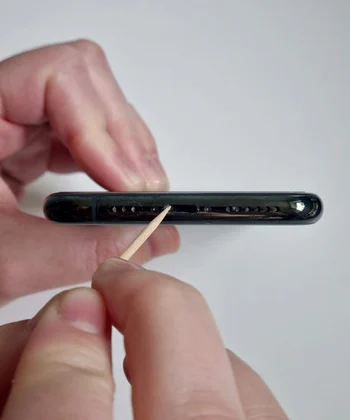
Is your phone suddenly charging much slower than it used to?
Maybe the battery percentage barely moves. or even the charging cable keeps disconnecting. Or maybe the phone only charges properly when you hold the cable at a particular angle.
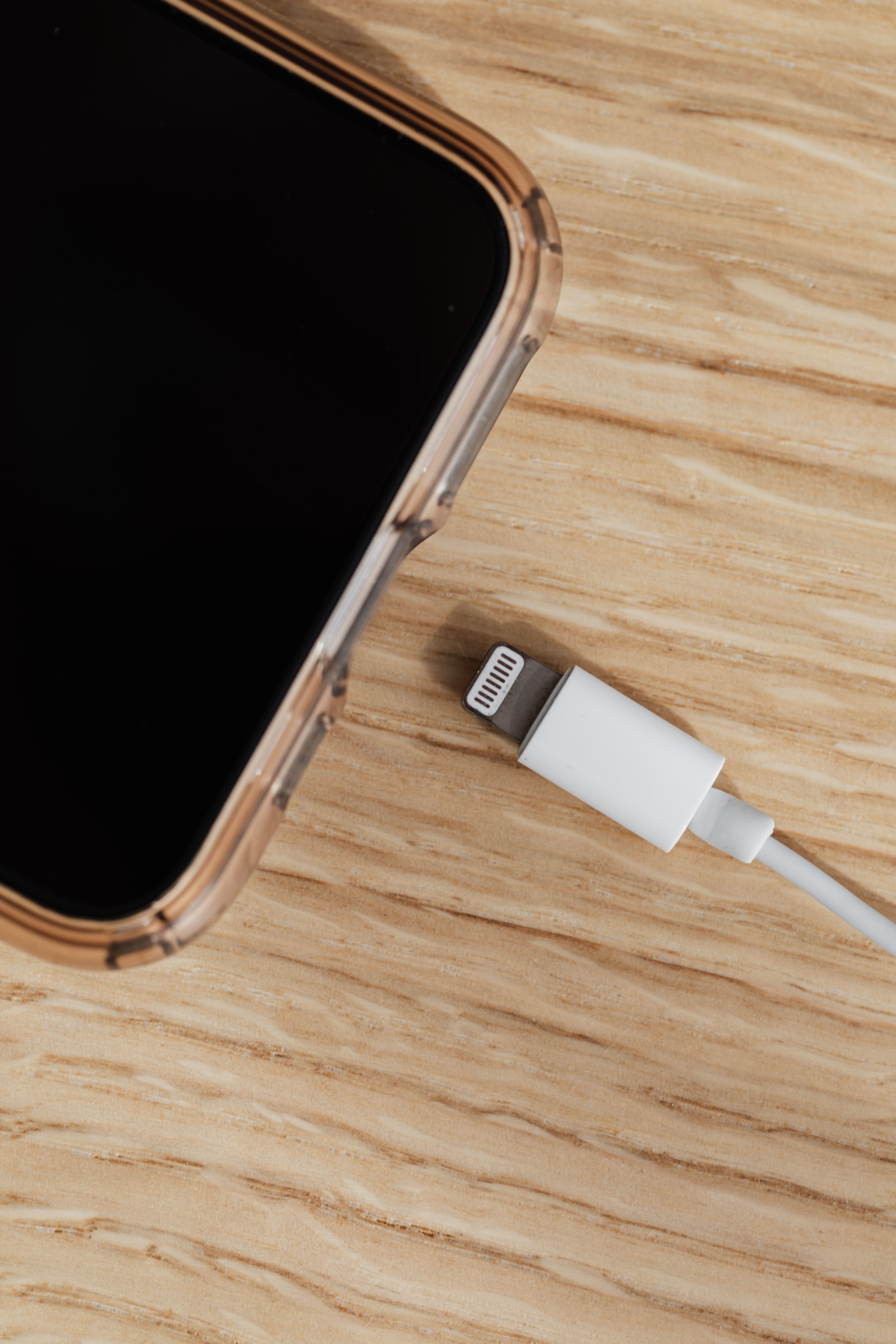
Don't assume the battery is dying or buying a new charger, check something much simpler and solve that problem in under 5 mins.
Dust, pocket lint and other small debris can collect inside the Charging port over time. In some cases, that buildup can prevent the charging cable from making proper contact with the charging pins.
The good news is that cleaning the port can be simple.
The important part is doing it safely to avoid any further damage.
In this guide will show you how to determine whether your charging port could be causing the problem, how to clean it without damaging the phone, and what to check if charging is still slow afterward.
Before You Clean: Is the Charging Port Actually the Problem?
Slow charging doesn't always mean the port is dirty. The problem could also come from:
- A damaged charging cable
- A weak or incompatible charger
- A damaged charging adapter
- A power source that isn't providing enough power
- The phone becoming unusually hot
- Background apps using significant power
- A worn or damaged charging port
-Battery health or battery-related problems
Charging settings or fast-charging compatibility
That's why it's better to test before cleaning.
Step 1: Check How Your Phone Is Charging
Connect your normal charging cable and look at what happens.
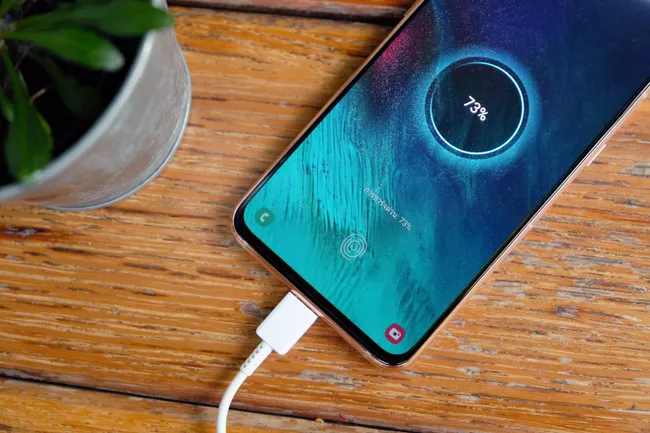
Does the phone:
1. Charge normally but slowly?
2. Connect and disconnect repeatedly?
3. Only charge when the cable is held at a certain angle?
4. Refuse to charge completely?
5, Show a charging notification but barely increase the battery percentage?
Pay attention to how firmly the cable sits inside the port.
If the connector feels unusually loose or doesn't seem to go in as far as it normally does, debris inside the port is worth investigating.
Don't force the cable deeper into the port.
Step 2: Turn the Phone Off
Before cleaning anything inside the charging port, switch the phone off.

Then disconnect the charging cable.
This gives you a safer starting point and prevents you from accidentally applying pressure to the port while the phone is powered and connected to a charger.
If your phone is hot from charging, allow it to cool down first.
Step 3: Inspect the Charging Port
Use a bright light and look inside the port.
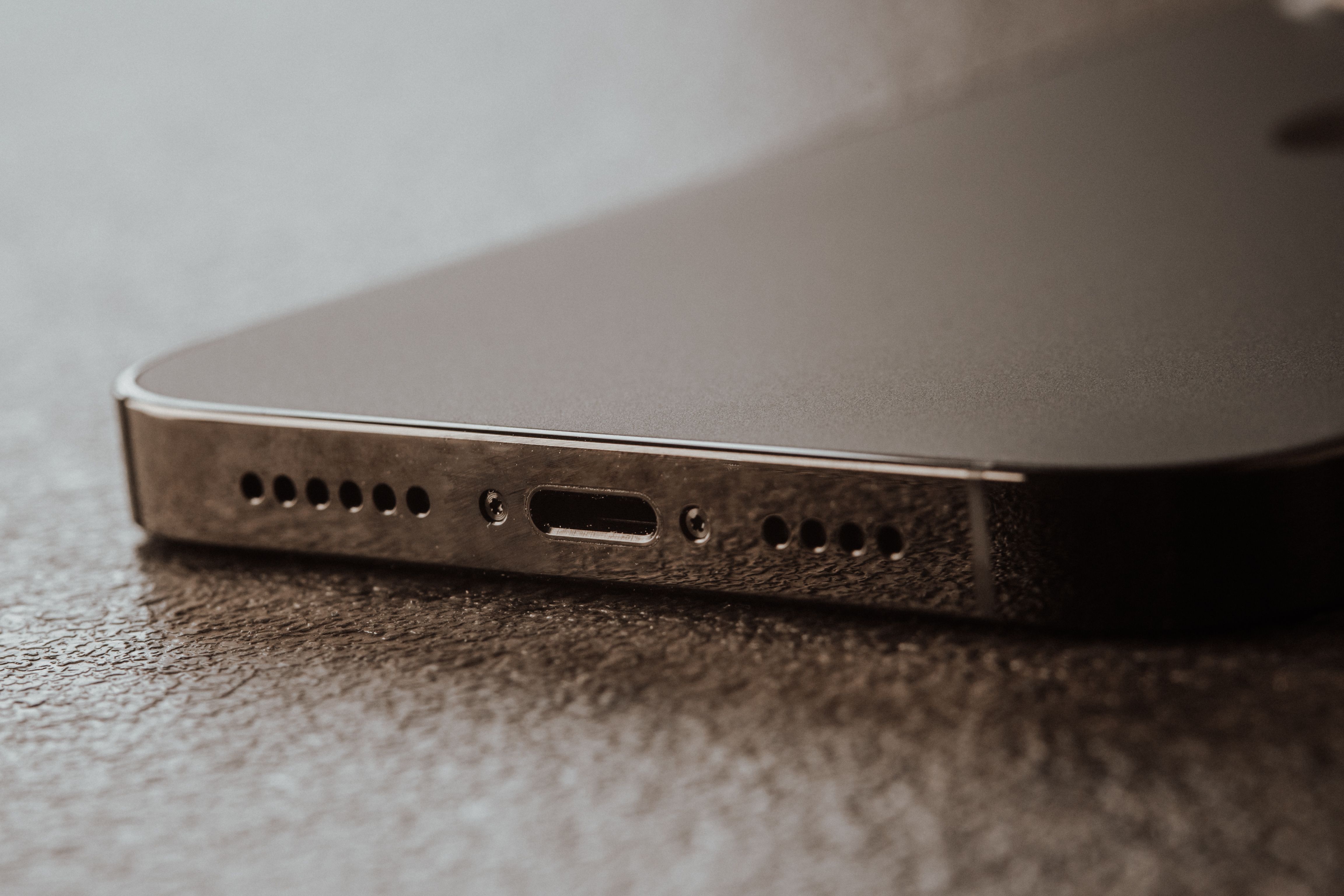
You may see:
- Pocket lint
- Dust
- Small pieces of debris
- Dirt around the edges
- Something that appears to be blocking the bottom of the port
Don't immediately start scraping.
First, look carefully at what you're dealing with.
What you're looking for
A USB-C port, for example, contains small components that can be damaged if you push something into them aggressively.
The goal is to remove loose debris, not to dig around inside the phone.
Step 4: Don't Use Metal Objects
This is one of the most important parts of the process.
Don't use a metal pin, needle, paper clip or similar sharp metal object to clean the charging port.
Metal can potentially damage the port's contacts or cause an electrical short if the phone is powered or connected to a power source.
Also avoid aggressively scraping the inside of the connector.
A charging port is small, so even a little unnecessary force can cause damage.
Step 5: Remove Loose Debris Carefully
If you can clearly see lint or debris, remove it gently.
Use a non-metallic tool appropriate for delicate electronics, and work slowly around the edges rather than forcing anything deep into the port.
The objective is to loosen material that is visibly obstructing the connector.
* Do not use force.
* Do not try to scrape the charging contacts clean.
* And don't keep pushing if something doesn't come out easily.
A useful rule
If the debris isn't coming out with gentle handling, stop rather than increasing the pressure.
A damaged charging port can turn a simple cleaning job into a repair.
Step 6: Don't Pour Liquid Into the Port
This should be obvious, but it's worth saying clearly:
Do not pour water, alcohol, cleaning solution or other liquid directly into the charging port.
Even if the phone is advertised as water-resistant, that doesn't mean liquid should be deliberately introduced into its connector.
If the phone has recently been exposed to water or moisture, don't attempt to charge it until you're confident the port and connector are dry.
Step 7: Check the Charging Cable Too
Sometimes the phone gets blamed when the cable is actually the problem.
Inspect the connector on your charging cable.
Look for:
- Dirt
- Bent or damaged parts
- Fraying
- Corrosion
- A connector that feels loose
- Visible physical damage
If possible, test the phone with another known-good compatible cable.
This gives you another useful clue.
If another cable works normally
The original cable may be the problem.
If both cables behave the same way
Continue checking the phone, charger and power source.
Step 8: Don't Assume Slow Charging Means a Bad Battery
Battery condition can affect charging, but it's not the only explanation.
Before replacing a battery, eliminate the simpler possibilities:
Phone → charging port → cable → charger → power source
Test each part systematically.
If the port is clean, the cable is good, the charger is appropriate and the phone is still charging abnormally slowly, then battery health, charging circuitry or software-related factors become more likely.
A Simple Charging-Port Troubleshooting Path
If you want the fastest way to approach the problem:
Phone charging slowly
↓
Inspect the charging port
↓
Visible lint/debris?
→ Yes → Carefully remove loose debris
→ No → Continue testing
↓
Try another compatible cable
↓
Still slow?
↓
Try another suitable charger/power source
↓
Still slow?
↓
Check temperature, battery behavior and charging settings
↓
Still abnormal?
→ The phone may need professional inspection.
When You Should Stop and Get Professional Help
Cleaning is reasonable when you're dealing with loose, visible debris.
But don't continue if:
- The port appears physically damaged
- The connector is loose inside the phone
- There are bent or broken components
- The phone has suffered liquid damage
- The phone becomes unusually hot while charging
- There is a burning smell
- Charging repeatedly starts and stops
- The battery is swollen
- The phone behaves abnormally while connected to power
A damaged charging port is not something you should try to repair by aggressively scraping or bending it back into position.
Frequently Asked Questions (FAQs)
Can dust make a phone charge slowly?
Yes. Dust and pocket lint can accumulate inside a charging port and interfere with the connector making proper contact.
However, slow charging can have many other causes, so cleaning the port shouldn't be treated as a guaranteed solution.
Can I clean my charging port with a toothpick?
A non-metallic tool can sometimes be used carefully to remove loose debris, but the important thing is how it is used.
Never force a tool deep into the port or scrape the internal contacts aggressively.
If you're uncomfortable doing it yourself, professional cleaning is safer.
Can I use a needle to clean my charging port?
It's better not to.
A metal needle can damage the port's contacts or create an electrical short if the phone is powered or connected to a charger.
Can I use water to clean my charging port?
Don't deliberately put water into the charging port.
If the phone has been exposed to moisture, allow it to dry properly before attempting to charge it.
Why does my phone only charge when I hold the cable at an angle?
That can indicate debris, a damaged cable, a worn connector or a damaged charging port.
Try another known-good compatible cable first. If the same behavior continues, the phone's port may need inspection.
Why is my phone charging slowly even after cleaning the port?
The problem may be the cable, charger, power source, charging temperature, battery condition, software settings or internal charging hardware.
Cleaning the port only eliminates one possible cause.
TecniView Editor's Note.
If you've experienced a phone that suddenly started charging slowly, the charging cable had to be held at an angle, or pocket lint blocked the port, your experience can help other readers.
The most useful troubleshooting starts with the simplest explanation — then works outward.