
Is your smartwatch connected to your phone but not receiving notifications? If WhatsApp messages, calls, or texts fail to appear, the problem could be a hidden notification setting, battery restriction, or app-specific issue.
Try these fixes before resetting your watch.
1. Check Bluetooth and App Permissions
Confirm Bluetooth is connected and notifications are enabled in your watch's companion app. On Samsung Galaxy Watch, open Galaxy Wearable → Watch settings → Notifications → App notifications. Enable the affected apps.
2. Fix Notifications When Your Phone Is Unlocked
If alerts appear only when your phone is locked—or arrive after unlocking it—check phone-use notification settings and battery restrictions.
On supported Galaxy Watches, go to Watch settings → Notifications → Phone notifications on watch. Select Always show on both if you want alerts on your phone and watch simultaneously.
3. Troubleshoot Missing WhatsApp Notifications
If WhatsApp works on your phone but not your watch, confirm phone notifications are enabled and WhatsApp is allowed in the companion app.
Some Galaxy Watch users report delayed alerts with the standalone WhatsApp watch app. If this matches your situation, investigate whether the watch app is responsible before changing other settings. Uninstalling it may help test phone notification mirroring, but it is not guaranteed to fix every case. Samsung smartwatch notification management Guide
Recommended product
Apple watch series 12 GPS
Tecniview's Recommended smartwatch

Affiliate link
Check prices on Amazon4. Turn Off Do Not Disturb
Disable Do Not Disturb, Bedtime, and Theater or Cinema modes temporarily. These can silence alerts even when the watch remains connected.
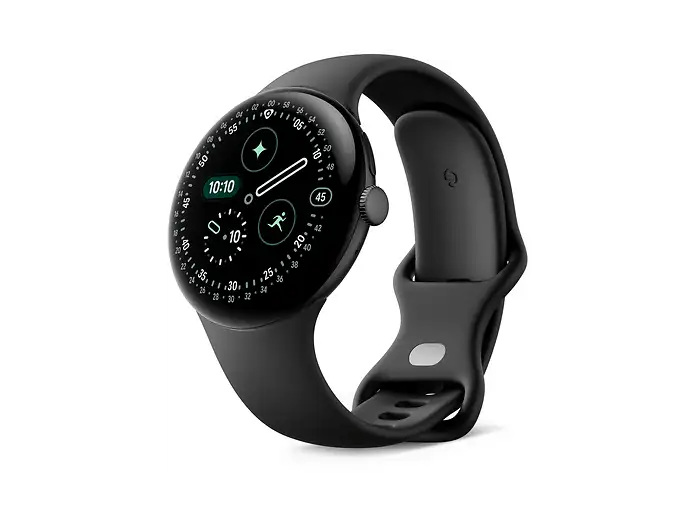
5. Fix Pixel Watch Silent Notifications
Open the Google Pixel Watch app → Notifications. Check Mute notifications from phone and Hide silent notifications. Turn them off if you want those alerts delivered to your watch.
6. Check Battery Restrictions
If notifications arrive late when your phone is idle, check whether battery-saving settings restrict the companion app or background activity. Menu names vary by phone manufacturer.
Read also: Google pixels smartwatch 4 review
7. Check Individual Apps
If calls arrive but text messages don't, inspect the Messages app's phone and watch notification permissions rather than resetting the entire watch.
8. Restart and Update Both Devices
Restart your phone and watch, then install available software updates. Test notifications again.
9. Re-Pair Only as a Last Resort
If nothing works, follow the manufacturer's re-pairing instructions. Back up important data before considering a factory reset.
Recommended product
Misxi Screen Protector Case for 40mm Apple Watch
Recommended smartwatch screen protector

Affiliate link
AmazonFinal Verdict
If your smartwatch is connected but not receiving notifications, identify whether the issue affects every app, only WhatsApp, or notifications arriving while the phone is locked. That clue can help you find the right fix without unnecessarily resetting your watch.