

You plug in your USB flash drive, hear the connection sound, but nothing appears in File Explorer. Sometimes Windows displays “USB device not recognized,” or the error “The last USB device you connected to this computer malfunctioned.”
Before replacing your drive, try these troubleshooting steps. They can help you identify whether the problem comes from the USB port, Windows, a missing drive letter or the flash drive itself.
Important: If your USB contains important files, do not format it or initialize it just because Windows asks you to.
1. Check the USB Port and Connection
Start with the simplest checks before changing Windows settings.
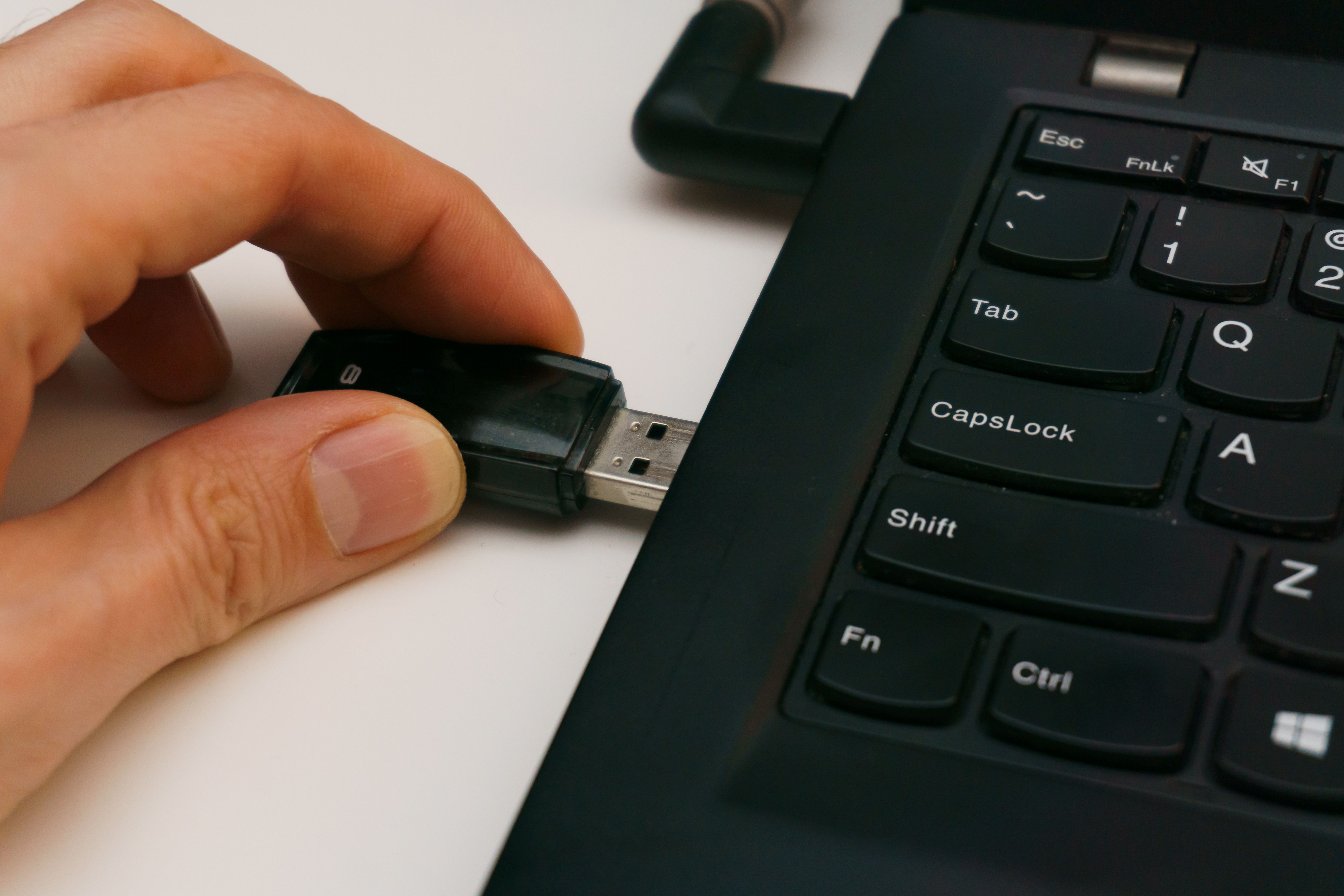
Unplug the USB drive and reconnect it.
Try another USB port directly on your computer.
Avoid USB hubs temporarily.
If you're using an adapter, try another compatible adapter.
Test the drive on another computer if possible.
If the drive works on another computer, the original computer's port, settings or drivers may be responsible. If it fails everywhere, the drive itself may be damaged.
2. USB Not Showing Up but Makes a Sound? Check Disk Management
A connection sound means Windows has detected some kind of connection, but it does not guarantee that the drive is accessible.
Press Windows + X.
Select Disk Management.
Look for a disk that matches your USB drive's capacity.
Check whether it appears without a drive letter.
If the correct partition exists and has no drive letter, right-click that partition, select Change Drive Letter and Paths, then choose Add and assign an available letter.
Only do this if you have identified the correct drive.
If the drive appears as RAW, unallocated or not initialized, do not format or initialize it if you need its existing files. Those conditions may require data recovery.
3. Fix “USB Device Not Recognized” in Windows 11
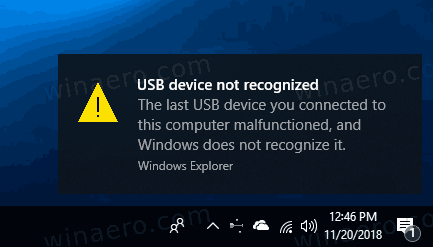
If Windows displays “The last USB device you connected to this computer malfunctioned,” try reinstalling the affected device entry.
Right-click Start and open Device Manager.
Expand the relevant category, such as Universal Serial Bus controllers.
Look for Unknown USB Device or an entry with a warning symbol.
Open its Properties and check the device status.
If you can identify the affected entry, right-click it and select Uninstall device.
Disconnect the USB device, restart your computer, then reconnect it.
Windows may reinstall the device entry automatically.
What does “Unknown USB Device (Device Descriptor Request Failed)” mean?
This error means Windows could not successfully read the USB device's basic identification information. A faulty connection, cable, port, device or USB controller can cause it.
Test another port and, where applicable, another cable before assuming a driver is missing.
If you searched for “USB device not recognized Windows 11 randomly”, intermittent failures may point to an unstable connection, power issue or device problem. Similar errors occur on Windows 7, although its menus and troubleshooting options differ.
4. Update Windows and Check the USB Driver
If the drive still isn't detected, open Settings, select Windows Update and check for available updates.
You can also open Device Manager, locate the affected device and check whether Windows offers a suitable driver update. For external storage devices, Windows normally supplies the necessary drivers automatically.
Avoid downloading drivers from unfamiliar websites or installing random driver-updater programs.
For more help, consult Microsoft's USB troubleshooting guide.
5. SanDisk USB Not Showing Up in Windows 11?
If your SanDisk USB isn't appearing, follow the same checks: try another port, test another computer and inspect Disk Management.
If Windows detects the drive but cannot access its files, avoid formatting it until you have checked the recovery options.
Recommended product
Sandisk 128GB ultra flair
Recommended USB flash drive.

Affiliate link
Check prices on Amazon6. When Should You Replace the USB Drive?
Consider replacing the drive if it repeatedly fails on multiple computers, disconnects unexpectedly or shows signs of physical damage.
If your issue involves a cable-connected external drive rather than a flash drive, testing a known-good compatible data cable or adapter may help.
Recommended product
USB-a to USB-c adapter
Tecniview's Recommended USB-a to USB-c adapter

Affiliate link
Check prices on amazonFinal Thoughts
When a USB drive is not showing up in Windows 11, start by checking the connection and testing another port. Then inspect Disk Management, investigate any device-recognition error and update Windows where appropriate.
Most importantly, never format a USB drive containing important files until you have considered data recovery. Identify the actual cause before spending money on replacement hardware.