
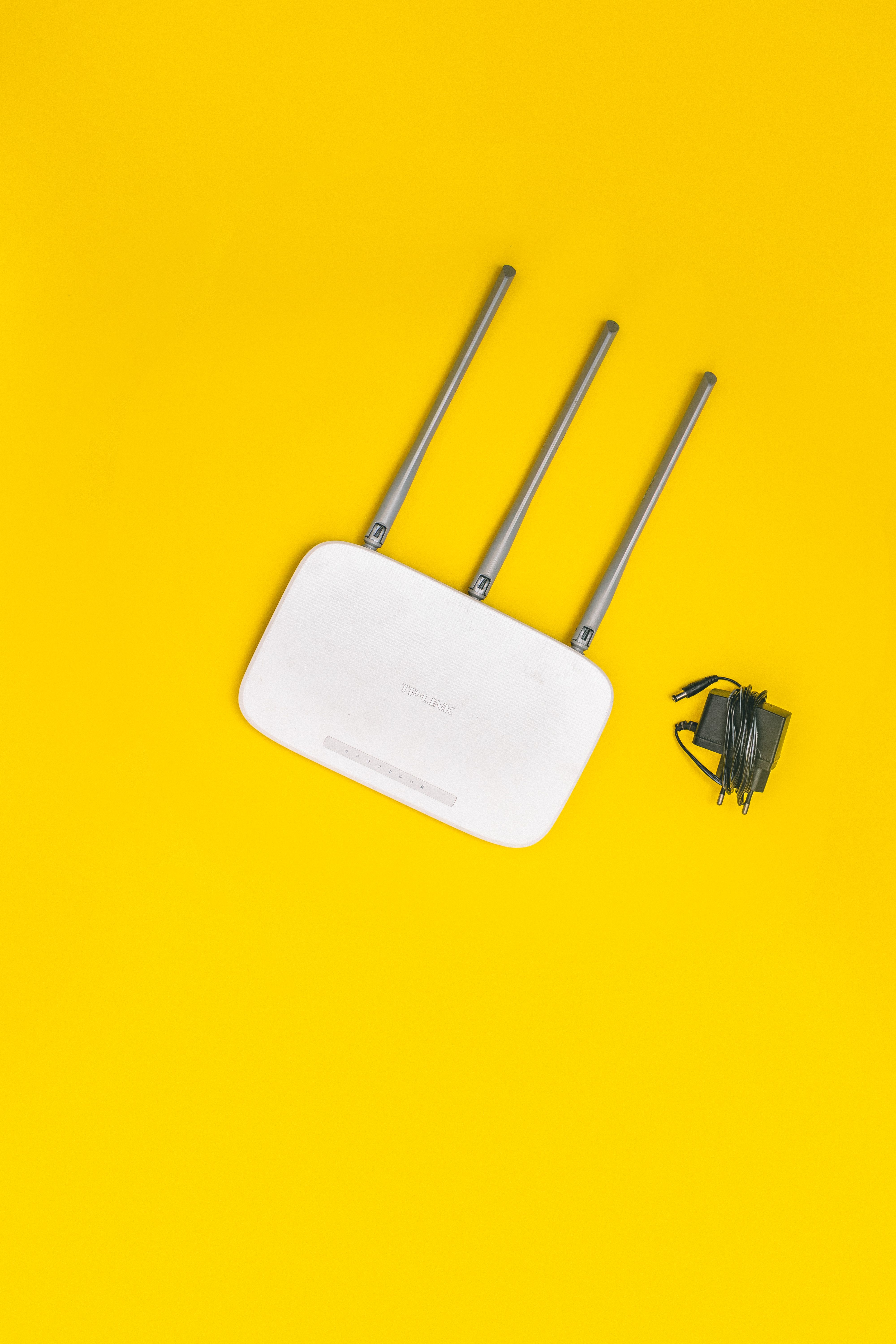
Does your Wi-Fi work perfectly in the living room but become painfully slow in the bedroom or upstairs? You may notice buffering videos, failed downloads, frozen video calls, or a phone that struggles to load websites even when your internet speed test looks impressive.
Before paying for a faster internet plan, find out whether the problem is your internet connection, your router’s position, or weak Wi-Fi coverage. Here’s how to diagnose it and fix it without wasting money.

1. Check Whether the Problem Is Your Internet or Wi-Fi
Run an internet speed test beside your router, then repeat it in the room where the connection struggles. Use the same device and, if possible, the same speed-test service. use Fast to test your wi-fi speed.
If speeds are good near the router but drop significantly in the other room, weak wireless coverage or interference may be responsible. Walls, floors, metal objects, and the distance between your device and router can weaken Wi-Fi signals.
If both locations are slow, the issue could instead be your internet provider, router, or network congestion.
Also test another phone or laptop in the affected room. If every device struggles there, coverage is more likely to be the problem. If only one device is slow, troubleshoot that device before buying new equipment.
2. Reposition Your Router to Make It Faster
One of the simplest answers to how to make router faster is to improve its placement. Put it in an open, central, elevated position rather than hiding it inside a cabinet, behind a television, or on the floor.
Keep it away from thick walls, large metal objects, and appliances that may cause interference. If your router is tucked into a corner at one end of the house, moving it closer to the centre may improve coverage.
Retest your connection after moving it. Small placement changes can sometimes make a noticeable difference without requiring new equipment.
3. Check Your Wi-Fi Band and Connected Devices
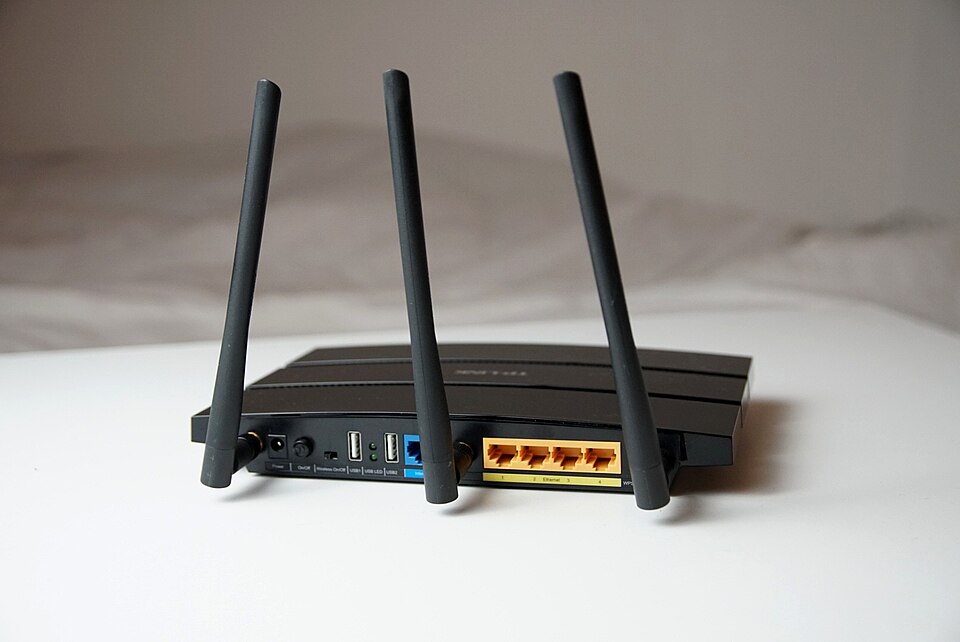
Many routers offer both 2.4 GHz and 5 GHz Wi-Fi. The 2.4 GHz band generally reaches farther, while 5 GHz can deliver higher speeds at shorter distances. Your results depend on the router, device, and surrounding obstacles.
If your phone is slow far from the router, try connecting to the available network that performs better in that room. Pause large downloads and check whether other devices are consuming substantial bandwidth.
If you’re wondering, “Why is my internet so slow on my phone?”, compare the phone with another device in the same location. If only your phone is affected, restart it, reconnect to Wi-Fi, and check for software updates.
Read also: Everything you need to know about Oraimo Spacebuds OTW-630
4. Understand Why Your Speed Test Looks Fast but Browsing Is Slow
An internet speed test that says fast but feels slow does not automatically mean your router is faulty. Speed tests measure particular aspects of your connection at a particular moment; they don’t guarantee that every website, app, or server will respond quickly.
Test more than one website and repeat the speed test in both locations. If possible, connect a computer directly to the router using Ethernet. If the wired connection is also slow, investigate the internet service, router, or computer before blaming Wi-Fi coverage.
If Ethernet download speed is slow too, try another Ethernet cable or port, then restart the router and test again. A wired test is most useful when it isolates your device from the wireless signal.
5. When Should You Buy a Mesh Wi-Fi System?
If moving the router and checking your devices don’t solve the problem, a mesh Wi-Fi system may be worth considering. It uses a main unit and additional nodes to extend coverage across different parts of your home.
Recommended product
TP-Link Deco X55 AX3000 WiFi 6 Mesh System
Tecniview recommends this Mesh system

Affiliate link
View on AmazonA mesh system can be especially useful in larger homes, multi-storey buildings, or properties where thick walls create persistent dead zones. Compare the TP-Link Deco range and placement guidance before choosing a kit. Check compatibility with your existing modem and internet service, and remember that advertised coverage varies by building layout.
Don’t buy mesh equipment just because your Wi-Fi suddenly became slow. First check whether the provider has an outage, restart your router, and repeat your tests. A mesh system improves wireless coverage; it cannot fix every internet-provider problem.
6. Place Mesh Nodes Correctly
Adding more nodes won’t help if they’re positioned badly. Put each node where it still receives a strong connection from the main router or another node—not inside the dead zone itself.
Keep nodes in open, elevated locations and away from thick walls and large obstructions. If your system supports a mesh connection test, use it to check node placement. Google explains this process in its official mesh Wi-Fi troubleshooting guide.
Final Verdict
If Wi-Fi is slow in one room but fast near the router, test the connection in both locations, compare multiple devices, reposition the router, and check for interference before spending money. A mesh Wi-Fi system is a sensible next step when the evidence points to poor coverage across rooms or floors.
For additional guidance, see Google’s advice on troubleshooting slow Wi-Fi. Fix the actual cause first, and you’ll have a much better chance of improving your connection without paying for equipment you don’t need.
Frequently Asked Questions
1. Why is my Wi-Fi slow in one room but fast near the router?
Your Wi-Fi signal may be weakened by distance, thick walls, floors, metal objects, or wireless interference. Try moving your router to an open, central location and testing the connection again. If several devices still struggle in that room, a Wi-Fi extender or mesh system may help.
2. How can I make my router faster without buying a new one?
Restart your router, position it in an elevated and unobstructed location, check for firmware updates, and connect to the Wi-Fi band that performs best for your distance. Pause bandwidth-heavy downloads and test your speed near the router and in the affected room before deciding whether new equipment is necessary.
3. Should I buy a Wi-Fi extender or a mesh Wi-Fi system for a weak signal?
A Wi-Fi extender can be a budget-friendly choice for improving coverage in one problem area. A mesh Wi-Fi system is often better for larger homes, multiple floors, or several dead zones. Choose based on your home layout, budget, and existing router compatibility rather than advertised coverage alone.