
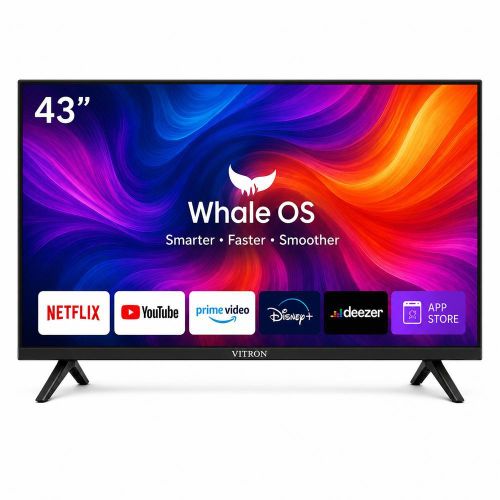
Are you wondering how to install apps on a Whale OS smart TV? Whether you own a Vitron Whale OS 10 television or another compatible smart TV, adding applications can help you enjoy more entertainment, streaming services and online content.
Many users search for how to download apps on Whale smart TV, how to install apps without an app store, and how to add apps to a smart TV that are not listed. The solution depends on your television's operating system, available applications and software version.
In this guide, we explain how to install apps on Whale OS, use the Whale TV app store, troubleshoot missing applications, watch YouTube without an app and explore alternatives for unsupported apps.
1. How to Install Apps on Whale OS Smart TV
If you want to know how to install apps on Whale TV, start with the built-in app store.
Follow these steps to download apps on your Whale OS smart TV:
Connect your TV to Wi-Fi.
Press the Home button on your remote.
Open the Apps or App Store section.
Search for the application you want to download.
Select the app and choose the available installation option.
Wait for the installation to finish and open the application.
These are the general steps for installing applications on a smart TV. Menu names may differ depending on your manufacturer and Whale OS version.
The official Whale TV app store lists applications across categories such as entertainment, sports, news, music and tools.
2. How Do I Add Apps to My Smart TV That Are Not Listed?
If you cannot find an application in the Whale OS app store, it may not be supported on your television. You might also be using an older software version or a model with a different selection of apps.
Try these solutions:
Update your TV: Open Settings and look for Software Update or System Update.
Search the official app store: Check the exact app name and alternative official versions.
Use a web browser: If your TV has a compatible browser, try accessing the service through its official website.
Use a streaming device: A compatible Google TV or Android TV device can provide another way to access supported applications.
Can I install APK files on Whale OS?
Some Whale OS 10 hardware configurations support APK applications, but that does not mean every Android APK will work on every Whale OS television. Check your model's compatibility before installing anything.
Avoid unknown APK download websites and modified applications, which may contain malware or compromise your accounts.
3. What Is the Whale TV App?
The Whale TV app can refer to the mobile companion app, while Whale TV also operates the smart TV platform and its app store.
The mobile app can offer features such as controlling a compatible television from your phone, entering text and casting supported media. It is not a universal application installer for every smart TV.
If you are searching for the Whale TV app download, use the official mobile app listing and verify that your phone and TV are compatible.
You can also explore Whale TV's official website for information about its television platform and supported entertainment services.
4. How to Download Apps on Whale Smart TV Without an App Store
Can you download apps on a Whale smart TV without an app store? Your options depend on the television's features.
First, check whether your TV has a web browser or an official way to update its software. You may be able to access some websites without downloading a dedicated application.
Another solution is to connect a streaming device through HDMI. For example, a compatible Google TV streaming device has its own interface and supported app store.
After connecting the device, select the correct HDMI input, connect it to Wi-Fi and install applications through its supported store.
Recommended product
Google TV streamer (4K) Supports up to 4K resolution HDR
Tecniview's recommended Google TV streamer

Affiliate link
Check Price on Aliexpress5. How to Install YouTube on Smart TV Without an App
If YouTube is missing from your Whale OS app store, open a compatible TV browser and visit youtube.com.
If the browser supports YouTube playback, you can watch videos without installing the YouTube app. However, some browsers may have playback, login or navigation limitations.
If YouTube does not work, consider a compatible streaming device that supports the official YouTube application. This can also help when you want to install other streaming apps that are unavailable on your TV.
Read also: Learn how to safely clean dust from your Phone's charging port on your own.
6. How to Fix Whale OS App Installation Problems
If an app will not download, check your internet connection, available storage and system software. Restart your television and try again.
If an application is missing, check the official app store and confirm whether it supports your model. If an app fails to open, it may be incompatible or require an update.
These steps can help troubleshoot problems with downloading apps, installing applications, opening the Whale OS app store and accessing streaming services.
Frequently Asked Questions
1. How do I install apps on my smart TV?
Open your television's app store, search for the application, select it and follow the installation instructions. The available apps depend on your TV's operating system and model.
2. How do I add apps to my smart TV that are not listed?
Check for official software updates, try a compatible web version or connect an external streaming device. Direct APK installation is only an option when supported by your particular television.
3. How do I install apps on Whale TV without the app store?
Check whether your TV supports compatible APK installation or web applications. Alternatively, connect a compatible streaming device through HDMI to access its own supported apps.
Conclusion
Learning how to install apps on Whale OS smart TV can help you get more from your television. Start with the built-in app store, check compatibility when an application is missing, and consider browser access or a streaming device when necessary.
Always use trusted sources and confirm that applications are compatible with your television before installing them.