
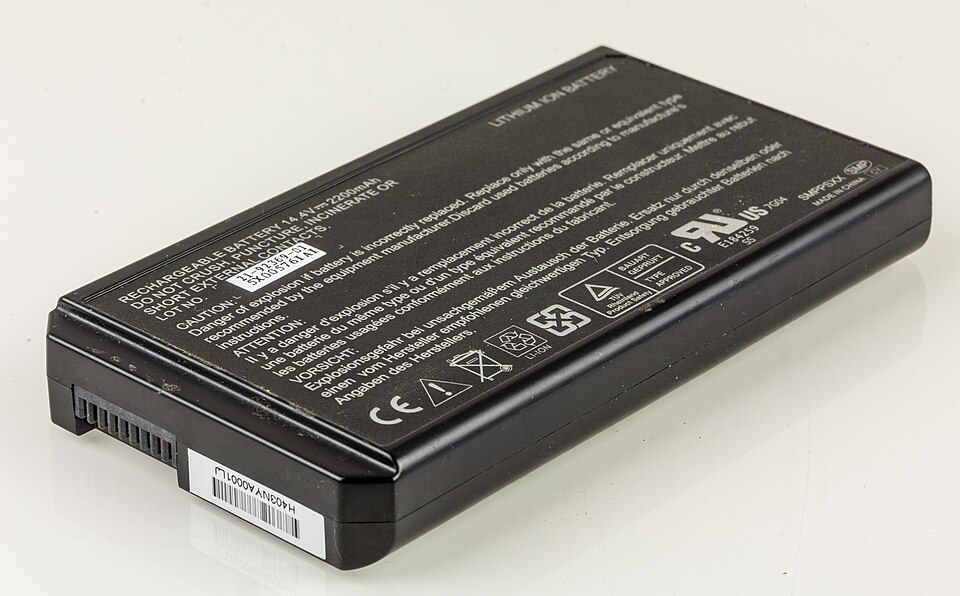
Does your laptop battery drain quickly, refuse to charge fully, or shut down as soon as you unplug the charger? These symptoms can indicate a worn-out battery, but they do not always mean you need a replacement.
Before spending money on a new battery, check your laptop's battery health, compare its original and current capacity, and rule out problems with the charger or charging system.
In this guide, you'll learn how to know if your laptop battery needs replacing on Windows 11 and Windows 10, what the battery report means, and when replacing the battery makes more sense than buying another laptop.
Signs Your Laptop Battery May Need Replacing
Look for these warning signs:
Battery life has dropped significantly. A laptop that once lasted several hours now runs out of charge much sooner under similar conditions.
The laptop shuts down unexpectedly. It switches off while unplugged even though Windows still shows some battery remaining.
The laptop only works when connected to the charger. This can indicate a failed or disconnected battery, although the charging system may also be responsible.
Battery health diagnostics report a failure. Manufacturer tools may show a status such as Poor, Weak or Replace.
The battery holds much less charge than it originally did. The laptop's reported full-charge capacity is substantially lower than its design capacity.
One symptom alone is not always enough to confirm battery failure. For example, a laptop that drains quickly could also be running demanding applications, overheating, or using a lot of power in the background.
Important safety warning: If the laptop casing is bulging, the trackpad is lifting, or the battery appears swollen, stop using and charging the laptop. Do not press, puncture or attempt to flatten the battery. Arrange professional repair.
1. Check Your Laptop Battery Health in Windows
Windows includes a built-in tool that generates a battery report. You do not need to install a third-party battery checker.
Follow these steps:
Right-click the Start button.
Open Terminal or Command Prompt.
Type
powercfg /batteryreportand press Enter.Windows will display the location where it saved the report.
Open File Explorer, navigate to that location, and open the HTML report in your browser.
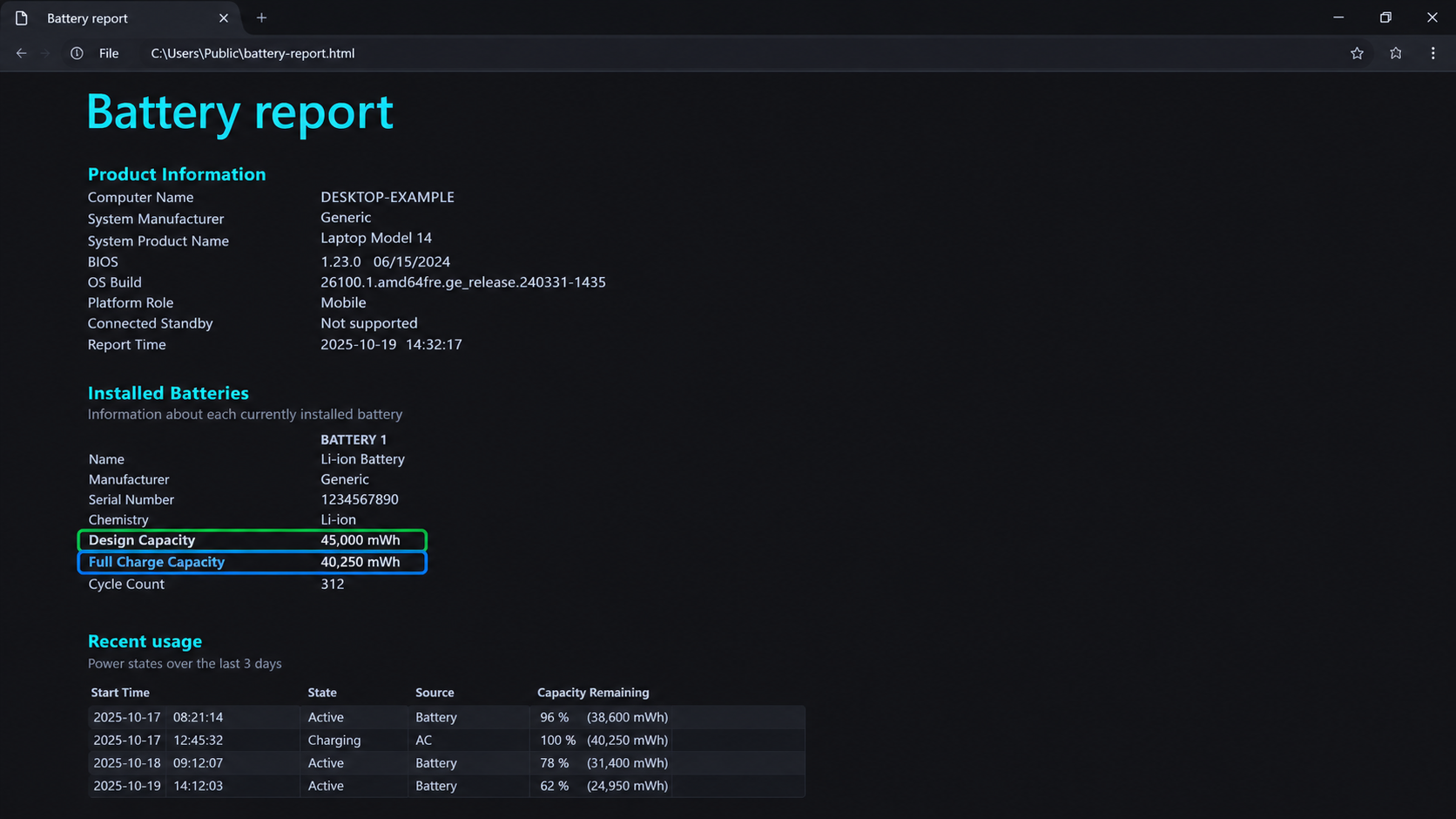
Look for the Installed batteries section. Depending on your laptop, it may contain these two important values:
Design Capacity: The battery's original rated capacity.
Full Charge Capacity: The capacity Windows currently estimates the battery can hold when fully charged..
You can calculate the approximate capacity loss using:
Capacity loss = (Design Capacity − Full Charge Capacity) ÷ Design Capacity × 100
With the example above, the estimated loss is 40%.
This is a useful indicator of battery wear, not a definitive pass-or-fail test. Battery-report figures can be estimates, and a low capacity reading should be considered alongside your actual battery life and the manufacturer's diagnostics.
2. Understand What Your Battery Health Result Means
There is no single percentage that proves every laptop battery must be replaced. The laptop manufacturer's diagnostic result, battery behaviour and your needs all matter.
Use this guide to interpret the evidence:
Battery capacity is close to its original rating: Battery wear may not explain your problem. Check background applications, charger compatibility and charging settings.
Capacity has fallen noticeably and battery life is much shorter: Replacement may be worthwhile, especially if the laptop otherwise works well.
The battery report shows very low capacity: Check the result against your laptop manufacturer's battery test before buying a replacement.
The manufacturer reports Poor, Weak or Replace: Follow its recommended action and check whether your laptop is still under warranty.
The battery is not detected: Do not automatically buy a new battery. The problem could involve the battery connection, firmware or internal hardware.
For example, HP's battery diagnostics distinguish between a battery that passes, one that has weakened with age, and one that reports a failure. Dell also provides battery-health indicators for supported laptops.
Use the official diagnostic tool for your laptop whenever one is available.
3. Does Your Laptop Die When You Unplug the Charger?
If your laptop runs while connected to power but switches off immediately when you disconnect the charger, the battery may be unable to supply power.
However, a failed battery is not the only possible explanation. The battery could be disconnected, the laptop may not detect it correctly, or there could be a fault in the charging system.
Try these checks:
Save your work and restart the laptop.
Check whether Windows detects the battery.
Generate the battery report.
Run your manufacturer's battery diagnostic.
If possible, check the laptop's official support instructions for your exact model.
If diagnostics identify a failed battery, replacement is a sensible next step. If the battery passes but the laptop still shuts down when unplugged, arrange further diagnosis instead of buying parts at random.
Do not repeatedly disconnect the charger to test a laptop that shuts down unexpectedly; you could lose unsaved work.
Read also: how to repair a laptop that Turns On but Screen Is Black
4. Rule Out a Charger or Charging-Port Problem
A laptop battery may be healthy even when the laptop refuses to charge.
Check whether you are using the correct charger and cable for your model. A charger with insufficient power, a damaged cable, or a faulty charging port can cause charging problems.
Also check whether the battery stops at a fixed percentage such as 60% or 80%. Some laptops deliberately limit charging to protect battery health.
If the laptop says it is plugged in but the percentage never rises, read our related guide: [Laptop Plugged In but Battery Not Charging? How to Fix It] — link this text to your TecniView charging-troubleshooting article once it is published.
If a correctly rated charger and the manufacturer's diagnostic do not resolve the issue, the charging port or internal power circuitry may need professional inspection.
5. Is Replacing the Laptop Battery Worth It?
Replacing the battery can be a cost-effective way to extend the life of a laptop that still performs well.
Consider a battery replacement when:
The manufacturer's diagnostic confirms battery failure.
The battery no longer provides enough runtime for your needs.
The laptop works properly otherwise.
A compatible replacement is available at a reasonable price.
Consider professional repair or replacing the laptop when the battery is only one of several major problems, repair costs are high, or the device no longer meets your needs.
Before ordering a battery, identify your exact laptop model and the required battery part number. Two laptops from the same brand can use different batteries, even if their names look similar.
Recommended product
HT03XL L11119-855 Laptop Battery for HP Pavilion model
Tecniview recommendsd this battery for HP Pavilion 15-CS 15-DA 15-DB 15-DW users.

Affiliate link
Check Price on amazon6. Should You Replace the Battery Yourself?
That depends on the laptop design and your repair experience.
Some older laptops have removable batteries. Others contain internal batteries that require the bottom cover to be removed and internal connectors to be disconnected.
Before attempting a repair:
Check the manufacturer's official replacement instructions for your exact model.
Confirm whether the battery is designed to be user-replaceable.
Use the correct tools and follow the manufacturer's safety guidance.
Avoid puncturing, bending or applying pressure to the battery.
Do not attempt to remove a swollen battery yourself.
If you are inexperienced with laptop repairs, a qualified technician can confirm the diagnosis and install the replacement safely.
Final Verdict
If your laptop battery drains quickly, shuts down unexpectedly, or holds much less charge than it used to, check its health before buying a replacement.
Generate the Windows battery report, compare design capacity with full-charge capacity, and run the manufacturer's battery diagnostic. Rule out charger and charging-port problems, too.
If the battery has clearly degraded and the laptop is otherwise in good condition, replacing the battery may be the most practical option. If the diagnosis is uncertain, investigate further before spending money.