
If your HP laptop's power light comes on, the fan runs, or the keyboard lights up but the screen remains black, it may be receiving power without successfully displaying an image.
The cause could be a temporary startup problem, a display-output setting, a Windows or graphics-driver issue, a firmware problem, or a hardware fault. The symptoms alone cannot tell you which component is responsible.
The best approach is to start with simple, safe checks and use the results to decide what to investigate next.
This guide covers general troubleshooting for HP laptops, including the HP Pavilion 15-eg0000 and 15-eg1000 families where the relevant instructions apply. Exact procedures can differ between product configurations, so verify your full model and product number before attempting model-specific recovery or repairs.
Important: If your computer may be installing a Windows or BIOS update, do not immediately force it to shut down. HP warns that the display may remain blank during an update and that interrupting the process can damage the computer. If an update is in progress, allow it time to complete.
1. Check Whether the Laptop Is Actually Starting
Before pressing recovery shortcuts or changing settings, observe what happens when you turn on the laptop.
Check for these signs:
- The power light turns on and stays on.
- The fan starts spinning.
- The keyboard backlight activates, if available.
- The HP logo appears briefly.
- You hear startup sounds or other familiar activity.
- The Caps Lock or other status light blinks repeatedly.
These clues help narrow down the problem, but none independently proves that Windows has loaded or that a particular component has failed.
Pay particular attention to whether the HP logo appears.
If the HP logo never appears as shown below: The laptop may be failing during its initial startup checks, although further testing is needed to
establish the cause.
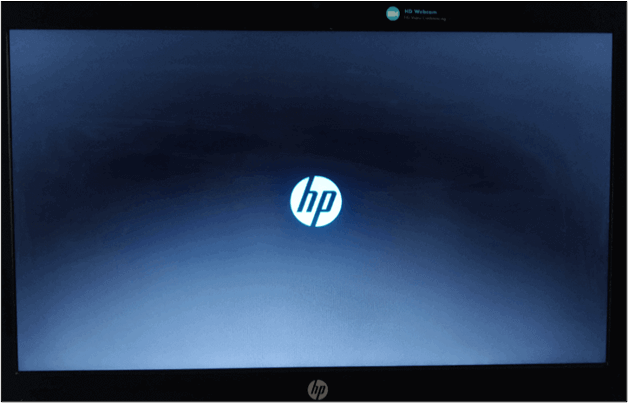
If the HP logo appears and then the screen goes black: A Windows startup, graphics-driver, or display-configuration issue becomes more plausible.
If the screen goes black after an update: Allow the update to finish before trying other troubleshooting steps.
Once you have observed the symptoms, continue to the next check.
Read also: How to Fix a USB that fails to read when inserted in a windows 10 or 11 laptop
2. Perform a Safe HP Laptop Power Reset

A power reset can help resolve some temporary startup problems. HP's general troubleshooting instructions recommend this procedure for supported computers that power on but display nothing.
Follow these steps:
If the laptop is responsive and no update is in progress, shut it down. If it is completely unresponsive, use the power button to turn it off.
Disconnect the AC power adapter.
Remove nonessential connected devices, such as USB drives, external storage devices, printers, and memory cards.
With the power adapter disconnected, press and hold the power button for approximately 15 seconds.
Reconnect the power adapter.
Turn on the laptop and check whether the screen displays an image.
The exact instructions can vary by model, so consult HP's guidance if your computer has a different procedure.
A power reset does not normally erase files saved on the computer. However, it will not repair a damaged screen, defective memory, or other failed hardware.
What if the screen is still black?
Do not repeat the same reset endlessly. Move to the external-display test to gather more information.
3. Connect an External Monitor or TV
An external display can help determine whether the problem is limited to the laptop's built-in screen or involves something broader.
You will need a compatible monitor or television and an appropriate video cable, such as HDMI if supported by your laptop.
Follow these steps:
Turn off the laptop if it is safe to do so.
Connect the external display to the laptop.
Turn on the monitor or television and select the correct input.
Turn on the laptop.
Allow the computer time to start.
If necessary, press the display-switching function key indicated on your keyboard. On many HP laptops this is F4, but the correct key varies by model.
Now observe the result.
If the external display shows an image
This suggests that the laptop can produce video output. The built-in display, its connection, display configuration, or graphics software may need further investigation.
If Windows loads successfully on the external display, back up important files and check for graphics and chipset drivers specifically intended for your exact HP product.
Do not immediately purchase a replacement screen. A technician may need to test the display panel and its connection before identifying the faulty component.
If both displays remain black
The problem may involve startup, firmware, memory, graphics hardware, or another component. A failed external-display test does not prove that the motherboard or graphics hardware is defective.
Continue by checking for diagnostic lights and determining whether the laptop reaches the HP startup screen.
Recommended product
Laptop Cooling Pad.
Does your Laptop Get hot? Tecniview Highly recommends this cooling pad

Affiliate link
Check prices on Amazon4. Find Out Whether the Problem Starts Before Windows
The point at which the screen becomes black is an important diagnostic clue.
Scenario A: The screen is black from the moment you press the power button
If you never see the HP logo, the problem may occur before Windows begins loading. Potential causes include firmware or hardware issues, but the symptom alone does not identify the failed component.
Try the power reset and external-monitor test first. If both fail, consult HP's startup troubleshooting guidance for your model.
Scenario B: The HP logo appears, but Windows never loads
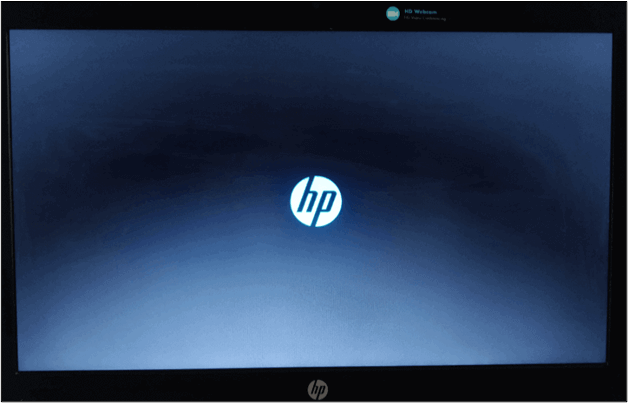
If the logo appears and the computer then becomes stuck, the issue may involve Windows startup, an update, or another boot-related problem.
If you can see the display, note any error messages. If the screen is completely black, avoid blindly trying multiple recovery shortcuts.
Use the official Windows recovery guidance appropriate to your Windows version, or follow HP's model-specific troubleshooting instructions.
Scenario C: The screen goes black after a Windows update
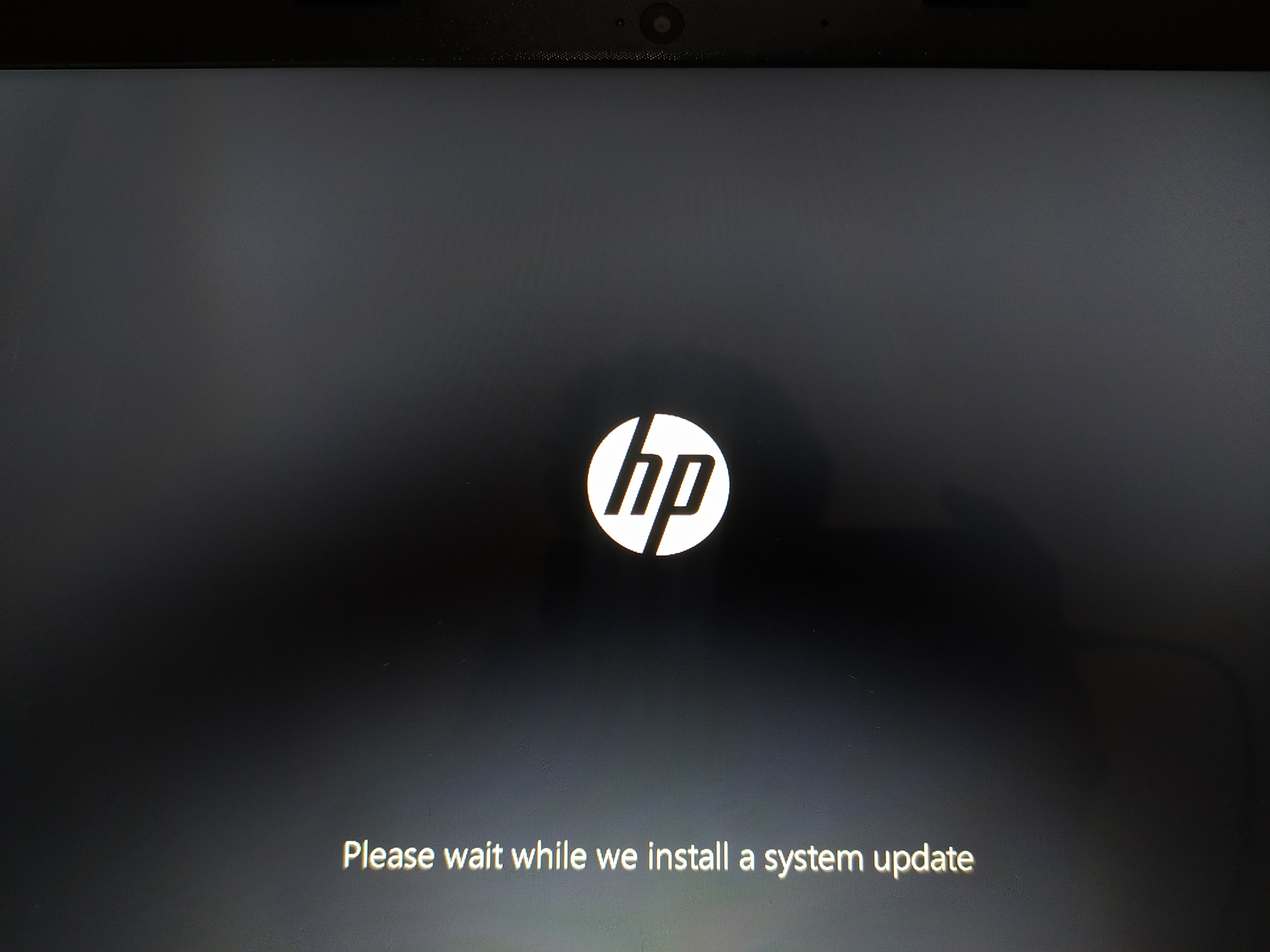
Allow the update time to complete. A blank screen during an update does not necessarily mean that the computer has failed.
If the computer remains stuck after the update should reasonably have finished, use the appropriate Windows recovery options or HP support guidance. Avoid interrupting a BIOS update while it is still in progress.
Scenario D: The screen works sometimes but goes black again
An intermittent problem could involve the display connection, graphics software, overheating, or another hardware or software issue.
Note when it happens, whether moving the screen changes the display, and whether the laptop becomes unusually hot. If changing the screen angle causes flickering, stop repeatedly moving it and arrange an inspection because the display or its connection may be damaged.
5. Consider BIOS Recovery Only If It Is Appropriate
A BIOS or firmware problem can prevent a laptop from starting correctly. HP provides BIOS recovery procedures for supported computers, but recovery is not the right first step for every black-screen problem.
Before attempting BIOS recovery:
- Confirm your laptop's full product number.
- Read the recovery instructions for that exact model.
- Connect the laptop to a reliable power source.
- Do not interrupt an update already in progress.
- Avoid experimenting with undocumented key combinations.
HP documents a Windows + B recovery procedure for supported notebooks. The general process involves turning off the computer, connecting the AC adapter, holding Windows + B, briefly pressing the power button, and waiting for the recovery process to appear.
However, the precise procedure and availability can vary. Follow the official instructions for your computer rather than assuming the shortcut works on every HP laptop.
The screen may remain blank for a period while a supported recovery process starts. Do not interrupt it simply because the display does not appear immediately.
If the issue began during a BIOS update, or the recovery process does not behave as HP describes, consult HP support for your exact product before attempting further recovery.
6. Run HP Hardware Diagnostics If You Can Access Them
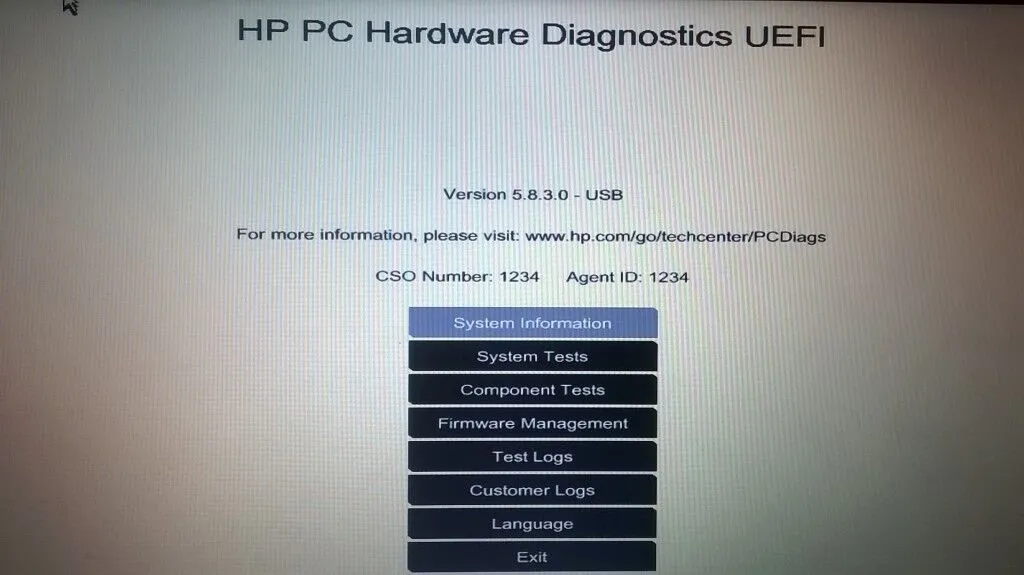
If the display begins working or you can access the startup menu, HP's built-in hardware diagnostics may help identify a component problem.
On many HP computers, you can try the following general route:
Turn off the laptop.
Turn it on and repeatedly press Esc to open the Startup Menu.
If the menu appears, press F2 to access HP PC Hardware Diagnostics, where supported.
Look for the available component tests.
Run the relevant tests, such as memory or storage, if offered.
The available tests and menus vary by model. Follow the instructions shown by your computer and its official support documentation.
If a diagnostic test reports a failure, record the exact error or Failure ID. This information can help HP support or a repair technician identify the next step.
Do not open the laptop to remove or reseat memory simply because the screen is black. Internal hardware procedures should be performed only when the exact service instructions support them and you are comfortable working on laptop components.
7. Know When to Stop Troubleshooting
If the screen remains black after the safe checks, further testing may be necessary.
Contact HP support or a qualified repair technician if:
Neither the internal screen nor a compatible external monitor displays an image.
The laptop repeatedly shuts down or fails during startup.
Diagnostic lights or beep patterns indicate a hardware problem.
The screen is cracked or there is visible liquid damage.
The laptop was recently dropped or physically damaged.
BIOS recovery or other approved troubleshooting procedures fail.
You are uncomfortable performing the next diagnostic step.
Possible causes include a faulty display panel, a damaged display connection, memory problems, firmware faults, or other internal hardware failures. These are possibilities, not a diagnosis.
If the laptop is under warranty, check the warranty conditions before attempting internal repairs.
Does This Apply to the HP Pavilion 15-eg0000 and 15-eg1000?
The HP Pavilion 15-eg0000 and 15-eg1000 are separate product families with multiple configurations. General checks, such as disconnecting nonessential accessories and testing an external display, are useful starting points, but you should not assume every variant has identical components or supports every recovery procedure.
Before following a model-specific instruction:
Identify the full model and product number.
Open the official HP support website.
Select the product that matches your laptop.
Review its troubleshooting, diagnostic, and maintenance documentation.
Follow only the recovery procedures that apply to that configuration.
This is especially important before attempting BIOS recovery or working with internal hardware.
For the broad troubleshooting process, start with HP's official guide: HP PCs – Computer starts but the screen remains blank.
Frequently Asked Questions (FAQs)
Why is my HP laptop's power light on but the screen black?
The laptop may be receiving power without successfully displaying an image. Possible causes include a temporary startup issue, display configuration, graphics software, firmware, or hardware faults. A power reset and external-monitor test can help narrow down the cause.
Can a hard reset fix an HP laptop black screen?
A power reset can resolve some temporary startup problems, but it cannot repair defective hardware. Disconnect nonessential accessories, unplug the power adapter, and follow the reset instructions for your exact model.
Why does my HP laptop fan run when the screen is black?
The fan can run even when the laptop has not completed startup. Fan activity alone does not prove that Windows is running or that the display is defective. Check for the HP logo, test a compatible external display, and observe any diagnostic lights.
Does a black screen mean my HP laptop screen is broken?
No. A black screen can result from display, software, firmware, startup, or hardware problems. An external-monitor test can provide useful evidence, but further diagnosis may be required before deciding whether the internal screen needs replacement.
Final Thoughts
An HP laptop that turns on but shows a black screen can have several different causes. Start with safe checks, test an external display, and observe whether the problem occurs before or during Windows startup.
Avoid replacing parts, reinstalling Windows, or attempting BIOS recovery without evidence that the procedure applies to your computer.
The goal is not to try every possible fix. It is to use each check to narrow down the cause and identify the safest next step.