
Is your laptop keyboard typing wrong characters even though you are pressing the correct keys? Perhaps pressing one key produces a different symbol, your laptop keyboard types numbers instead of letters, or certain keys seem to have switched places.
These problems can be frustrating, especially when you're trying to enter a password, finish an assignment, or complete important work.
Fortunately, a laptop keyboard typing incorrectly does not always mean the keyboard is damaged. Common causes include an incorrect keyboard layout, Num Lock being enabled, stuck modifier keys, and software or hardware problems.
Before replacing your laptop keyboard, try these seven troubleshooting steps.
1. Check Your Keyboard Layout in Windows 11
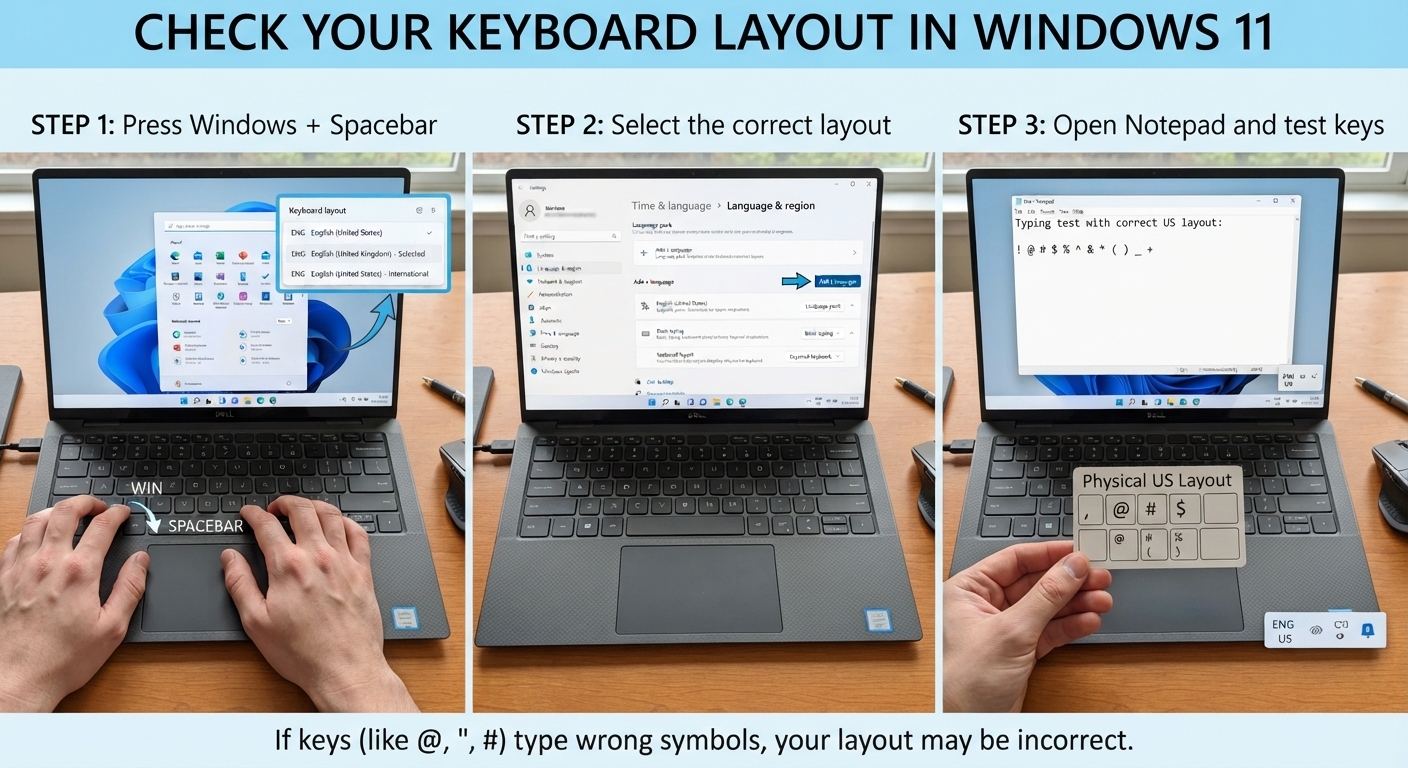
One common reason a laptop keyboard types the wrong characters is that Windows is using a different keyboard layout from the one printed on your keys.
For example, a UK keyboard layout and a US keyboard layout assign some symbols differently. You may press the key you normally use for quotation marks or the @ symbol and receive a different character.
Here's how to fix it:
Press Windows + Spacebar to display the available keyboard layouts.
Select the layout that matches your physical keyboard, such as English (United Kingdom) or English (United States).
Open Notepad and test the affected keys.
If you are unsure which layout you need, compare the physical keyboard with the layout selected in Windows.
You can also open Settings > Time & language > Language & region to review your installed keyboard layouts.
For more detailed instructions, read Microsoft's official guide to managing keyboard language and input layouts.
If your laptop keyboard started typing different symbols after pressing a keyboard shortcut, this is one of the first fixes worth trying.
2. Turn Off Num Lock if Your Laptop Types Numbers Instead of Letters
Does your laptop keyboard type numbers instead of letters? For example, do some letter keys produce numbers when you press them?
On certain laptops, the embedded numeric keypad uses letter keys to enter numbers. If Num Lock is enabled, these keys may behave differently from what you expect.
Try the following:
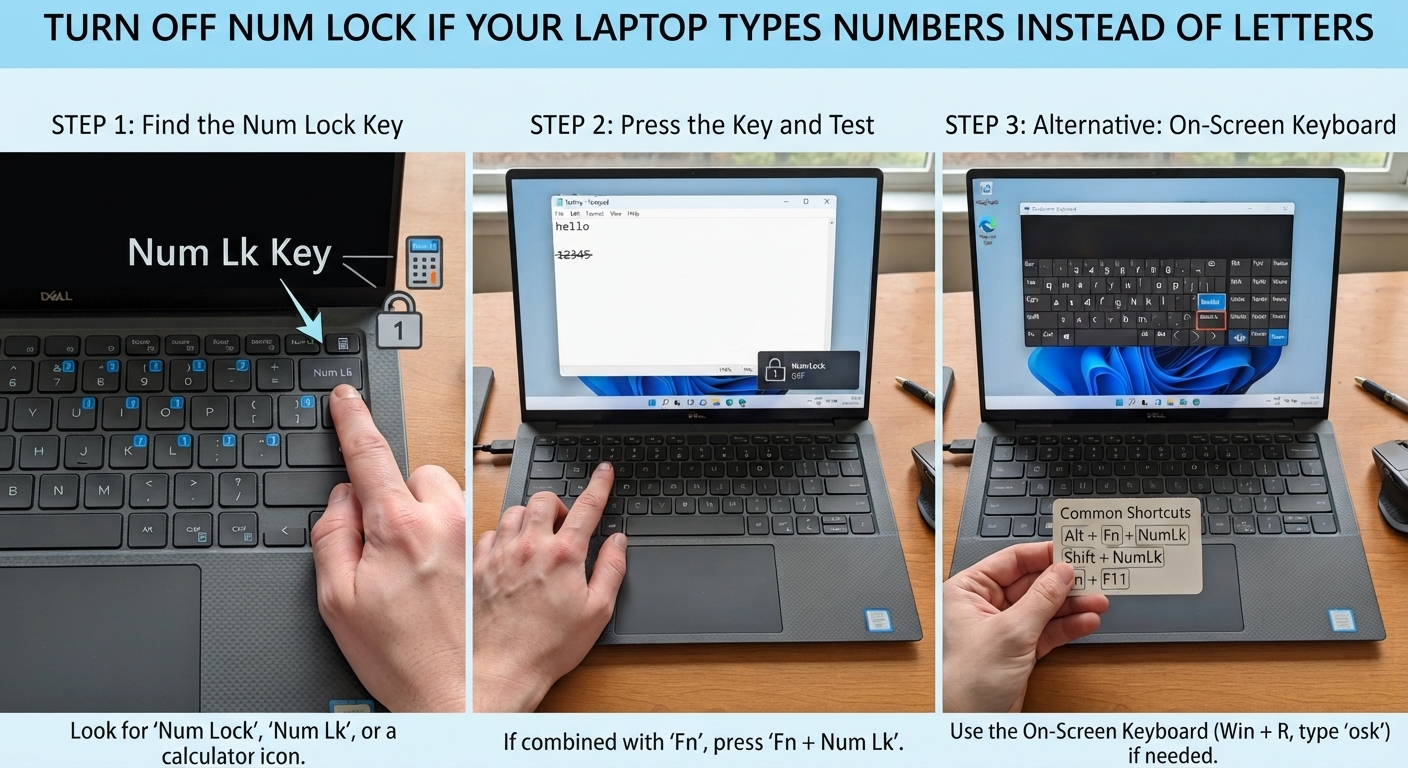
Look for the Num Lock, NumLk, or similarly labelled key.
Press it once and test the affected keys.
If Num Lock is combined with another key, you may need to press Fn + Num Lock or another manufacturer-specific combination.
The exact shortcut depends on your laptop model.
If you cannot locate the Num Lock key, open the Windows On-Screen Keyboard by pressing Windows + R, typing osk, and pressing Enter. If available, use the on-screen NumLock control to change the setting.
For more help, see HP's official guide to incorrect keyboard characters.
3. Check Whether Shift, Ctrl, Alt, or Another Key Is Stuck
If your laptop keyboard types symbols instead of letters, capitalizes everything, or triggers unexpected shortcuts, a modifier key could be stuck.
The Shift, Ctrl, Alt, and Windows keys change what other keys do. If one remains pressed physically or Windows registers it as pressed, ordinary typing can behave strangely.
Try these checks:
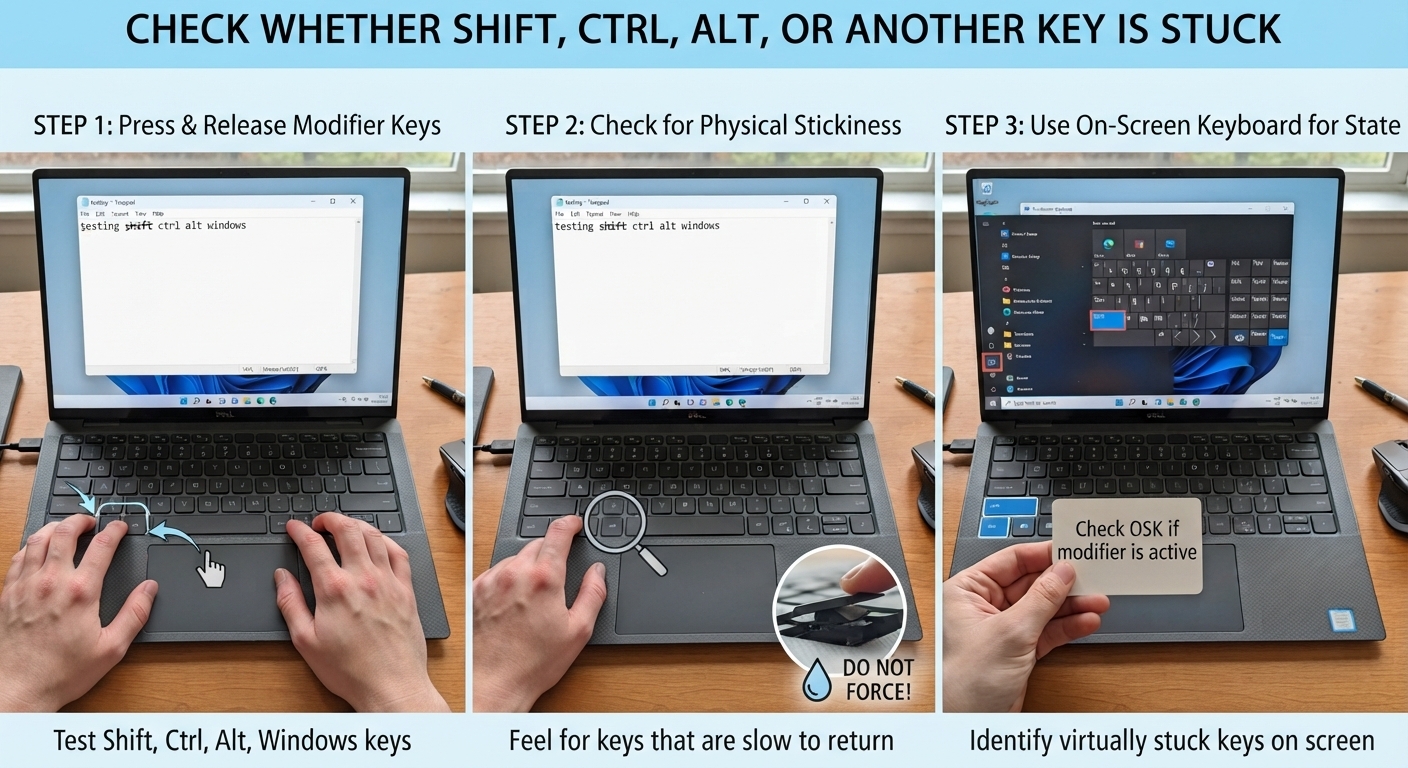
Press and release both Shift keys several times.
Check whether Ctrl, Alt, and the Windows key feel stuck.
Disconnect any external keyboard and test the built-in keyboard again.
Restart the laptop and see whether the problem disappears.
You can also open the On-Screen Keyboard to check whether a modifier key appears active when you are not pressing it.
If the keyboard is physically sticky after a spill, do not pour liquid into it or attempt to force the keys off. Liquid damage may require professional inspection.
4. Turn Off Filter Keys and Other Accessibility Settings
Windows accessibility settings can change how the keyboard responds to your typing.
For example, Filter Keys can ignore brief or repeated keystrokes. This may make it appear that your laptop keyboard is malfunctioning, particularly if it skips letters or fails to register quick presses.
To check:
Open Settings.
Select Accessibility.
Choose Keyboard.
Review settings such as Filter Keys and Sticky Keys.
Turn off any setting you do not need and test your keyboard again.
These settings are not necessarily the cause of wrong symbols, but they are worth checking if your keyboard ignores keystrokes, behaves inconsistently, or seems to require unusually long key presses
5. Test the Laptop Keyboard With an External Keyboard
If your laptop keyboard is still typing the wrong characters, connect a compatible USB keyboard and type the same text in Notepad.
Compare the results.
External keyboard works correctly: The built-in keyboard may have a hardware problem, or its configuration may differ.
Both keyboards type the same wrong characters: A Windows layout, software setting, or another system-wide issue becomes more likely.
Only certain built-in keys fail: Physical damage, debris, or a faulty keyboard circuit may be involved.
This test does not prove the exact cause, but it helps narrow down the possibilities before you spend money on repairs.
Recommended product
Arteck 2.4G USB Wireless Keyboard Full Size Keyboard for Computer/PC/Laptop
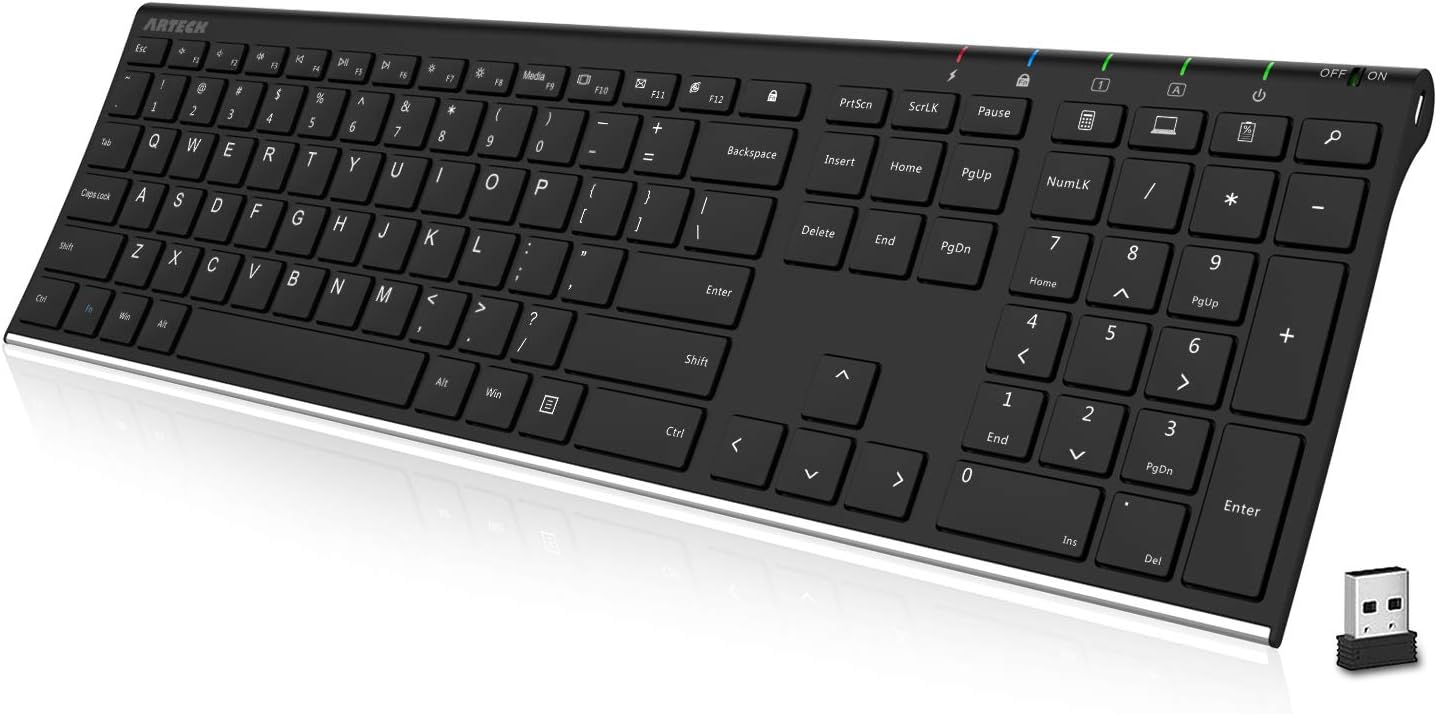
Affiliate link
Check Price on Amazon6. Update or Reinstall the Keyboard Driver
A keyboard driver or Windows device issue may cause keys to behave unexpectedly, although incorrect layouts and hardware problems should be checked first.
To inspect the keyboard driver:
Right-click Start and open Device Manager.
Expand Keyboards.
Right-click the relevant keyboard device.
Select Update driver and follow the available instructions.
If the problem began after a recent driver or system change, investigate that change before uninstalling devices.
You can also check Windows Update for relevant updates. For laptop-specific drivers or firmware, use the official support page for your laptop manufacturer.
Microsoft's keyboard and mouse troubleshooting guide provides additional checks for connection and device issues.
Avoid downloading keyboard drivers from unfamiliar third-party websites.
7. Check for a Damaged Laptop Keyboard
If your laptop keyboard is typing wrong characters after a liquid spill, physical impact, or prolonged use, a hardware fault may be responsible.
Other warning signs include:
Certain keys repeatedly entering the wrong character.
Keys registering several times from one press.
Several keys failing in the same area.
The keyboard behaving incorrectly even when tested outside your usual Windows applications.
If possible, test the keyboard at the Windows sign-in screen or in another appropriate environment. Be careful when entering passwords if the keys are producing unexpected characters.
If the problem persists after checking layouts, Num Lock, accessibility settings, and software, contact the laptop manufacturer's support service or a qualified repair technician.
Laptop keyboards can be integrated into the top case, so replacement difficulty varies by model. Check the exact part number and repair instructions before buying a replacement keyboard.
Do not replace the keyboard simply because one symbol is wrong. A layout mismatch can produce the same symptom without any hardware damage.
Read also: how to fix an External Hard Drive Not Showing Up in Windows 11.
Frequently Asked Questions
Why is my laptop keyboard typing the wrong letters?
A changed keyboard layout, enabled Num Lock, stuck modifier key, accessibility setting, or hardware fault can cause incorrect typing. Start by pressing Windows + Spacebar to check your keyboard layout.
Why is my laptop typing numbers instead of letters?
Some laptops use letter keys as an embedded numeric keypad. If Num Lock is enabled, those keys may enter numbers. Try toggling Num Lock or the appropriate Fn combination for your laptop.
Why does my keyboard type the wrong symbols in Windows 11?
Your selected keyboard layout may not match your physical keyboard. Check Windows language and keyboard settings and choose the correct layout for your device.
How do I know if my laptop keyboard is damaged?
If the same keys malfunction across different applications and after checking software settings, a hardware fault becomes more likely. Testing with an external keyboard can help narrow down the problem, but persistent physical faults may need professional diagnosis.
Final Thoughts
If your laptop keyboard is typing wrong characters, don't immediately assume it needs replacement. Check your keyboard layout, Num Lock, modifier keys, accessibility settings, and drivers before investigating hardware damage.
These steps can help you identify why your laptop keyboard is tytyping the wrong letters, numbers, or symbols—and may save you the cost of an unnecessary repair.
Affiliate Disclosure: TecniView participates in affiliate programs, including the Amazon Associates Program. If you purchase through links on this page, we may earn a commission at no additional cost to you. Our recommendations are intended to be useful and relevant to our readers.