

If your laptop screen flickers when plugged in, but looks normal when running on battery, the problem may be related to how your laptop changes its power or display settings. It could also involve the charger, graphics driver, refresh rate, or display hardware.
Some laptops briefly change brightness or display behavior when switching between battery and AC power. However, repeated flashing, visible lines, or a screen that keeps going black should not be ignored.
Before buying a replacement charger or paying for a screen repair, try these checks in order. They can help narrow down whether the issue is software-related, power-related, or likely to need professional repair.
Safety note: Stop using the charger if it is damaged, unusually hot, sparking, or producing a burning smell. Do not open the power adapter or laptop to inspect internal components.
1. Check Whether the Flickering Only Happens While Charging
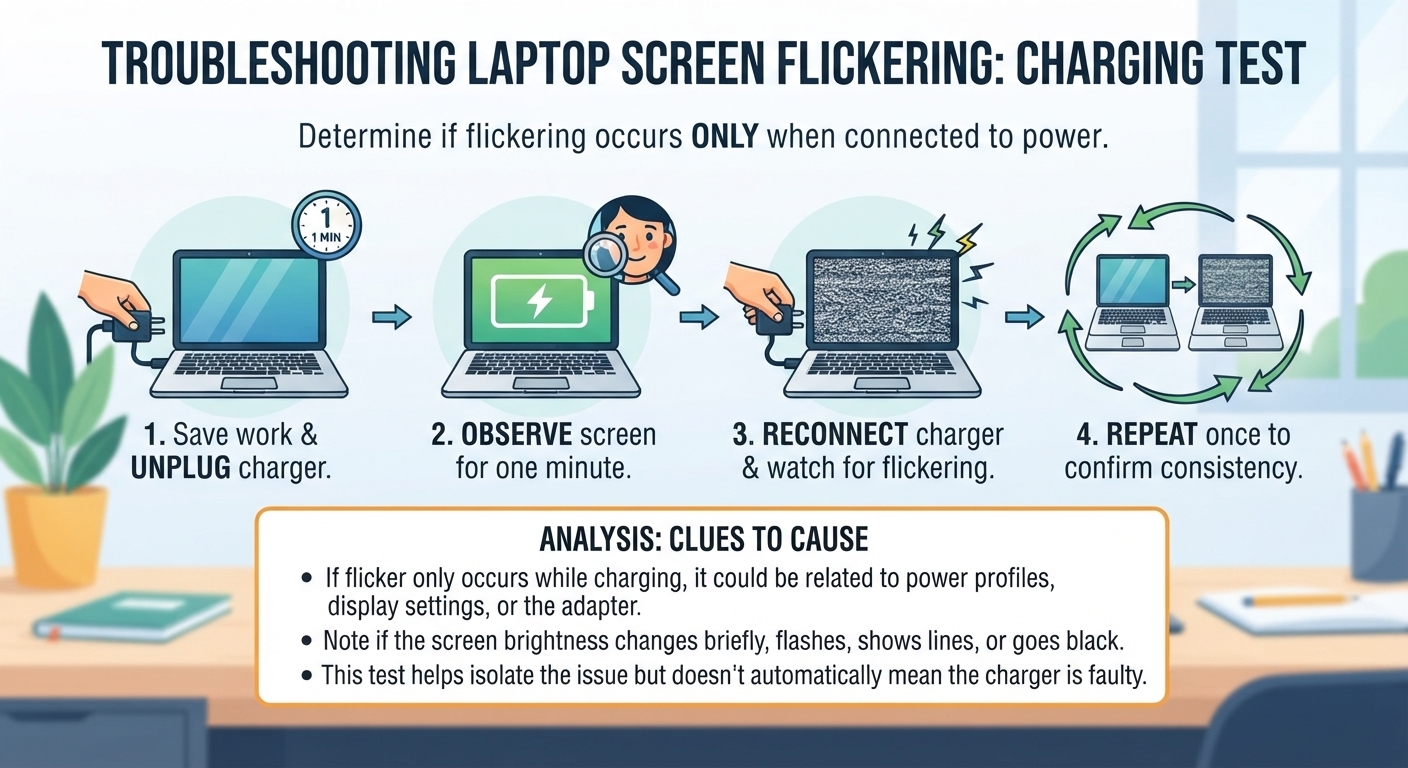
First, determine whether the laptop screen flickers only when connected to power.
Save your work and unplug the charger.
Observe the screen for a minute.
Reconnect the charger and watch for flickering.
Repeat once to see whether the issue consistently follows the power connection.
If the laptop screen flickers when charging but not on battery, that is a useful clue. It may be related to power profiles, display settings, or the adapter. It does not automatically mean the charger is faulty.
Also check whether the screen only changes brightness briefly or actually flashes, shows lines, or goes black. These symptoms can point to different causes.
2. Check the Charger and Power Outlet
A damaged or unsuitable power adapter may cause unstable power behavior. Check the charger for visible damage, bent connectors, frayed cables, or a loose connection.
Try these safe checks:
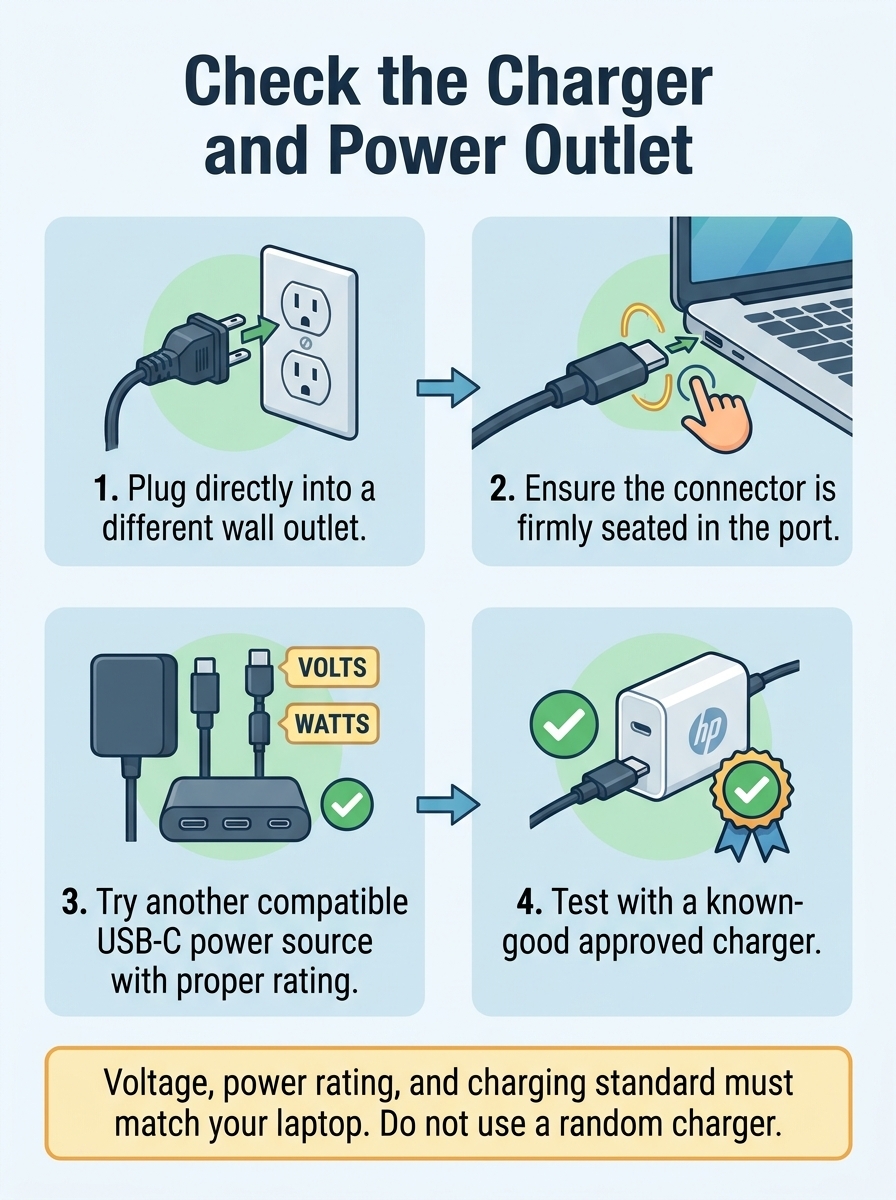
Connect the charger directly to a different wall outlet.
Make sure the connector is firmly seated.
If your laptop uses USB-C charging, try another compatible USB-C power source with the required power rating.
If available, test with a known-good charger that is approved for your exact laptop model.
Do not use a random charger just because its plug fits. The voltage, power rating, connector, and supported charging standard must be suitable for your laptop.
If the screen still flickers with a known-good compatible charger, the adapter becomes a less likely explanation.
3. Reset the Graphics Driver
A temporary graphics-driver glitch can cause display flickering in Windows.
Press:
Windows + Ctrl + Shift + B
Your screen may briefly go black or beep as Windows attempts to reset the graphics driver. This does not delete your files.
If the flickering stops, monitor the laptop for a while. If it returns, continue with the next steps.
Microsoft includes this shortcut in its Windows screen-flickering troubleshooting guide.
4. Check Whether Task Manager Flickers
This is one of the most useful checks when troubleshooting a Windows 11 laptop screen flickering when plugged in.
Press Ctrl + Shift + Esc to open Task Manager.
Keep Task Manager visible while the rest of the screen flickers.
Observe whether Task Manager flickers too.
If Task Manager flickers along with the rest of the display, a display driver may be involved. If Task Manager stays stable while other parts of the screen flicker, an incompatible application may be responsible.
This is a diagnostic clue, not a guaranteed diagnosis. Microsoft explains this test in its official screen-flickering guide.
5. Check the Refresh Rate and Power Settings
Some laptops change display behavior when switching between battery and AC power. Incorrect or unstable display settings may contribute to flickering.
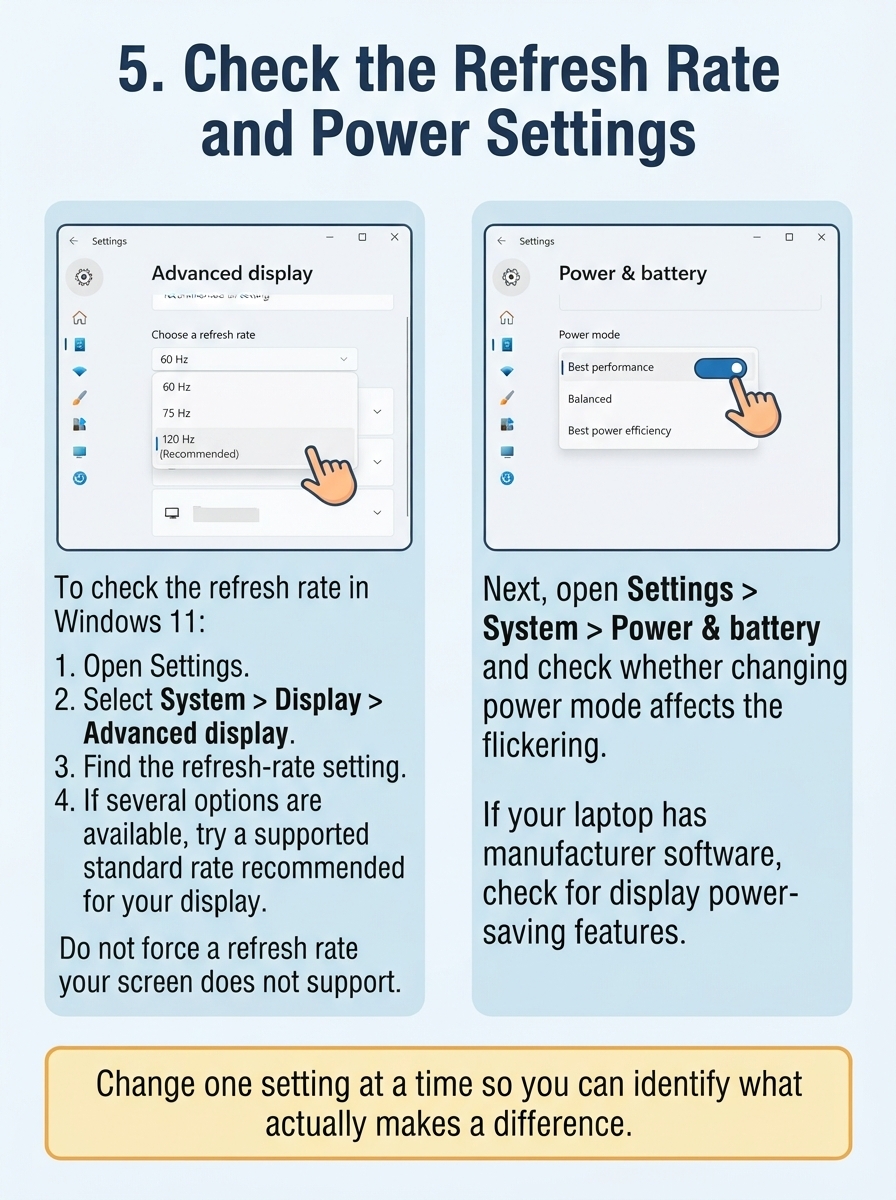
To check the refresh rate in Windows 11:
Open Settings.
Select System > Display > Advanced display.
Find the refresh-rate setting.
If several options are available, try a supported standard rate recommended for your display.
Do not force a refresh rate your screen does not support.
Next, open Settings > System > Power & battery and check whether changing power mode affects the flickering. If your laptop has manufacturer graphics or power-management software, check whether it has a display power-saving feature that changes behavior while charging.
Read also: How to fix Laptop Keyboard Typing Wrong Characters
Change one setting at a time so you can identify what actually makes a difference.
6. Update or Roll Back the Display Driver
An outdated or incompatible display driver can cause a laptop display to flicker. If the issue began immediately after a driver or Windows update, rolling back the driver may be worth trying.
To check the driver:
Right-click Start and open Device Manager.
Expand Display adapters.
Right-click your graphics adapter.
Select Properties, then open the Driver tab.
If the problem started after an update and the option is available, select Roll Back Driver.
Otherwise, check for an updated driver from your laptop manufacturer.
For laptops, the manufacturer’s recommended graphics driver is often a good place to start. Avoid downloading drivers from unfamiliar third-party websites.
See Microsoft’s instructions for troubleshooting screen flickering for the available update and rollback options.
7. Test With an External Monitor
If the laptop screen continues flickering when plugged in, connect the laptop to an external monitor or TV using a compatible video connection.
Observe both displays:
External monitor is stable, built-in screen flickers: The laptop’s internal display, display cable, or panel may be involved.
Both displays flicker: The graphics driver, graphics hardware, or another system-level issue may be involved.
This test cannot identify the exact failed component, but it helps narrow the possibilities.
If the laptop screen flickers when the charger is connected even before Windows loads, or if you see persistent lines, severe distortion, or repeated blackouts, arrange professional diagnosis. Do not open the laptop unless you are qualified to work on its internal components.
When Should You Replace the Charger or Repair the Screen?
Do not buy a new charger based only on the fact that the screen flickers while plugged in.
Consider a compatible replacement adapter if the current one is visibly damaged, repeatedly disconnects, or the issue disappears when using a known-good approved charger.
Consider professional repair if the display flickers on battery and AC power, shows persistent lines, changes when the screen lid moves, or continues flickering after software troubleshooting. The cause could involve the display panel, internal display cable, power circuitry, or graphics hardware.
For safety, stop using a damaged or overheating adapter.
Frequently Asked Questions
Why does my laptop screen flicker when I plug in the charger?
The laptop may be switching power or display settings, or it may have a graphics-driver, charger, or hardware issue. Check whether the flickering happens only on AC power and test with a compatible known-good charger if possible.
Why does my laptop screen stop flickering when I unplug the charger?
That pattern suggests the issue may be triggered by the charging state, power settings, or adapter. It is a useful clue, but it does not prove the charger is defective.
Can a faulty charger cause laptop screen flickering?
It can contribute to power-related display problems, but flickering can also come from software or internal hardware. Test with an approved compatible charger before deciding to replace it.